
 Cinder
 Bilbo
Bilbo Haplo AI
 Barrier
 ShipHappens
 Haplo AI Investing
 Markdown2PDF
 EasyLogo
 Annot8
App Store Screenshot Sizes (2026)
The exact pixel sizes App Store Connect takes for iPhone, iPad, Mac, Apple TV, Vision Pro and Apple Watch, checked against Apple's own pages in September 2026. An iPhone and iPad app needs just two of them.
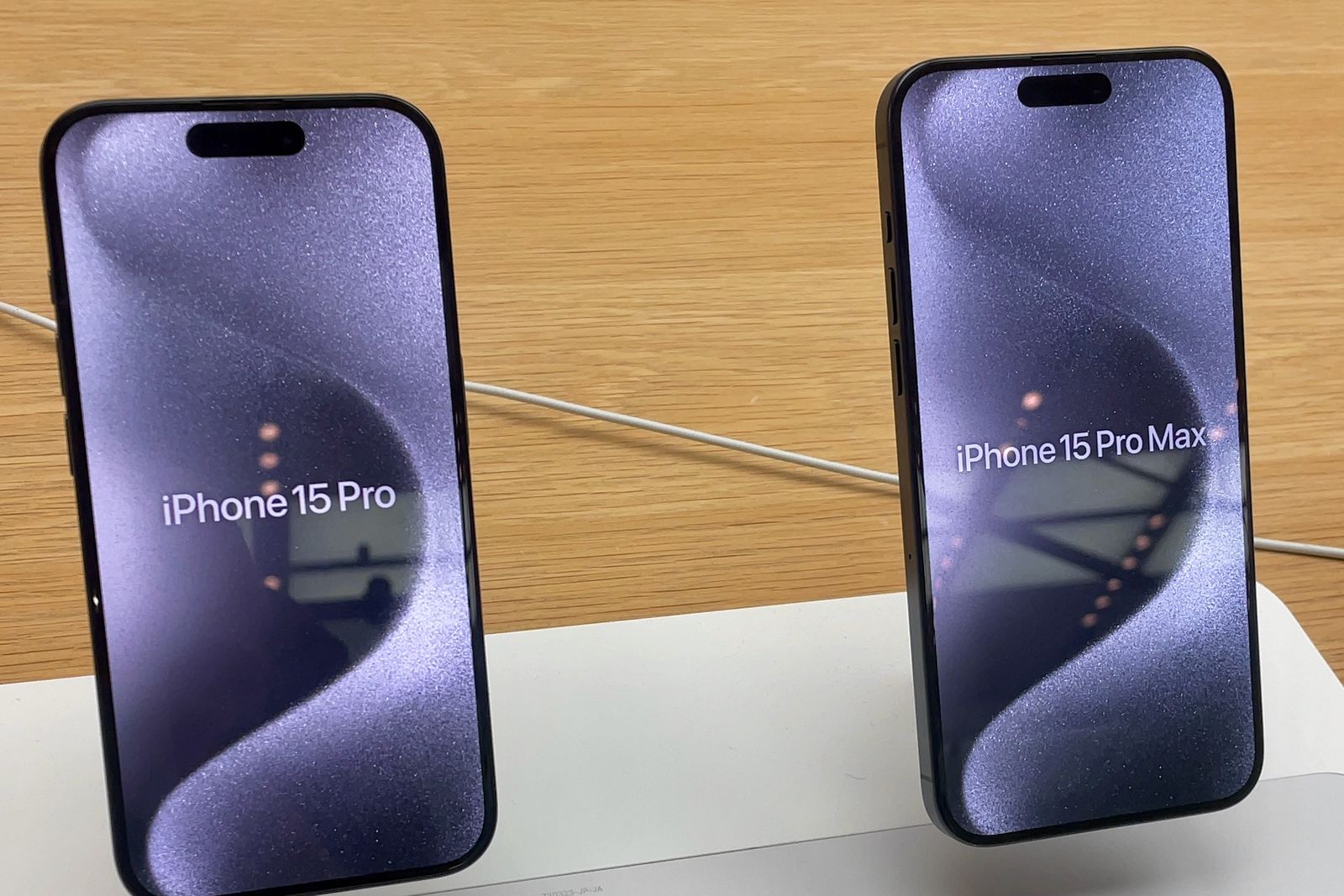
Apple’s list of App Store screenshot sizes now covers 18 displays across six kinds of device, and it changed again this month: on September 9, 2026, Apple added specifications for the iPhone 18 Pro and 18 Pro Max, the Apple Watch Ultra 4 and Series 12, and the iPhone Duo, a phone with two screens. That looks like a lot of images to make. It isn’t. An iPhone and iPad app needs two sets, and everything else is optional.
This is the reference we keep for our own releases: every size App Store Connect accepts as of September 2026, from Apple’s screenshot specifications (checked September 25, 2026), which sets you can skip, the formats and limits, and what the images may show. We make ShipHappens, the Mac app we use to lay out and upload the screenshots for our own nine apps, so these rules come up every time we ship.
Which App Store screenshot sizes are required?
One set for each kind of device your app runs on:
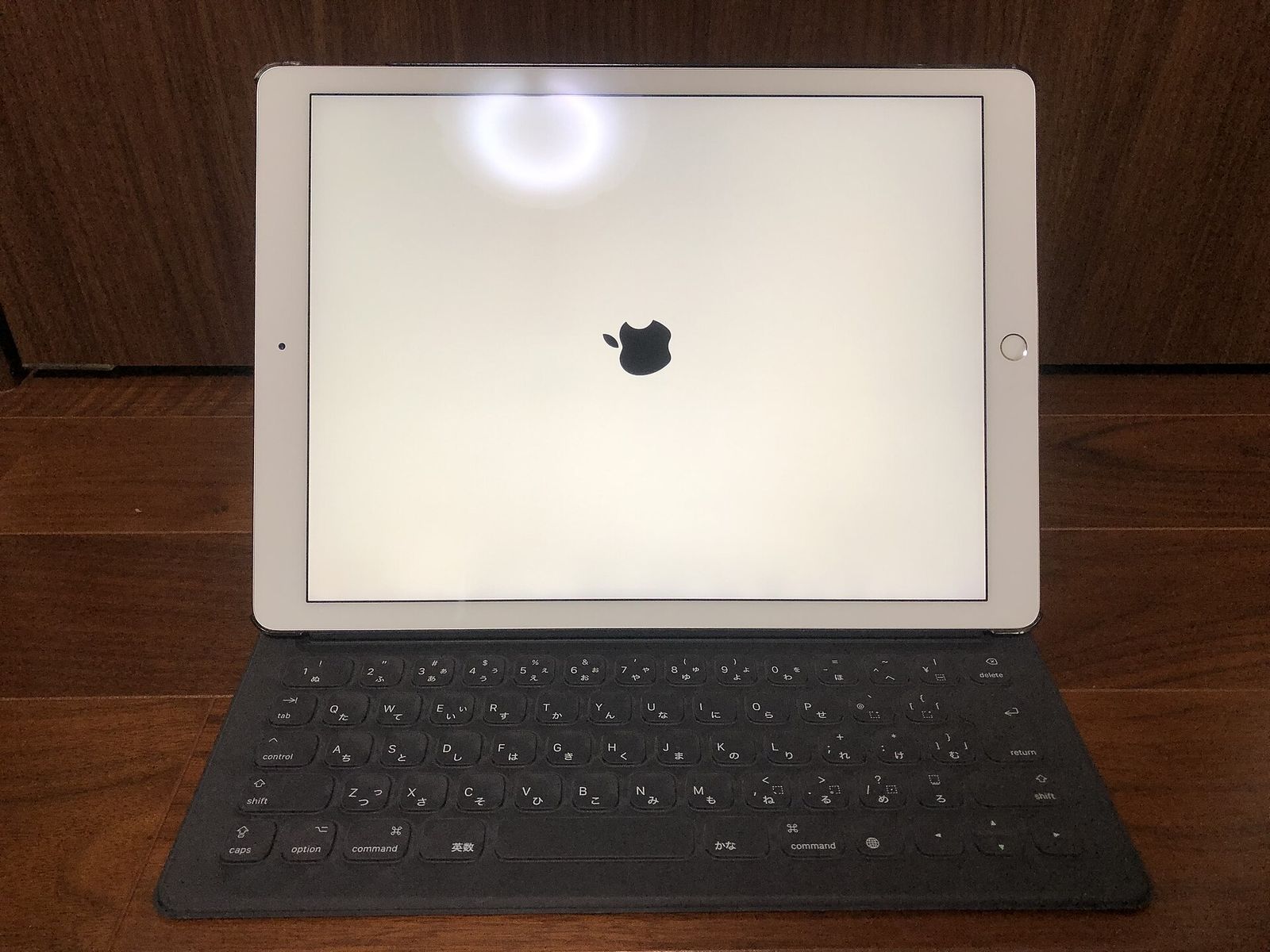
| Device | The set you must upload | Largest accepted size |
|---|---|---|
| iPhone | 6.9-inch, or 6.5-inch instead | 1320 × 2868 |
| iPad | 13-inch, if the app runs on iPad | 2064 × 2752 |
| Mac | Mac, for Mac apps | 2880 × 1800 |
| Apple TV | Apple TV, for Apple TV apps | 3840 × 2160 |
| Apple Vision Pro | Apple Vision Pro | 3840 × 2160 |
| Apple Watch | Apple Watch, for Watch apps | 422 × 514 |
For iPhone, Apple marks the 6.5-inch set as required when there’s no 6.9-inch set, so either will do. Apple’s upload guide says so plainly: if your app’s interface is the same across device sizes and localizations, “provide only the highest resolution screenshots required. They automatically scale down to smaller device sizes.” The one-set requirement dates from September 11, 2024.
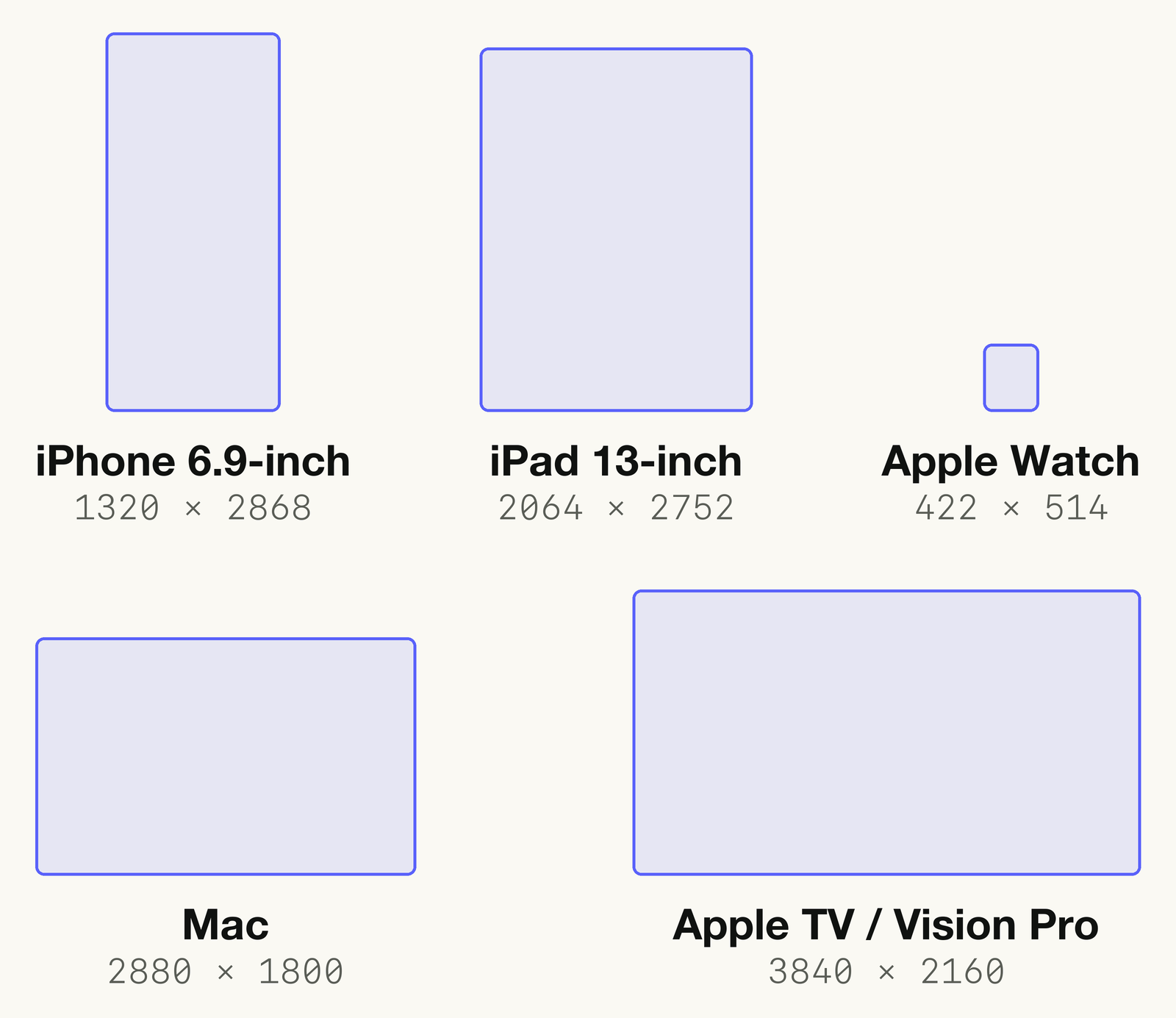
iPhone screenshot sizes
Every iPhone size works in portrait or landscape; landscape is the same two numbers swapped. Portrait sizes, the models Apple lists for each, and what happens if you skip one:
| Display | iPhone models | Portrait sizes | Rule |
|---|---|---|---|
| 6.9-inch | Air, 18 Pro Max, 17 Pro Max, 16 Pro Max, 16 Plus, 15 Pro Max, 15 Plus, 14 Pro Max | 1260 × 2736, 1290 × 2796, 1320 × 2868 | Required, or upload 6.5-inch instead |
| 6.5-inch | 14 Plus, 13 Pro Max, 12 Pro Max, 11 Pro Max, 11, XS Max, XR | 1284 × 2778, 1242 × 2688 | Required if there’s no 6.9-inch set; otherwise scaled from 6.9-inch |
| 6.3-inch | 18 Pro, 17 Pro, 17, 16 Pro, 16, 15 Pro, 15, 14 Pro | 1179 × 2556, 1206 × 2622 | Scaled from 6.5-inch |
| 6.1-inch | 17e, 16e, 14, 13 Pro, 13, 13 mini, 12 Pro, 12, 12 mini, 11 Pro, XS, X | 1170 × 2532, 1125 × 2436, 1080 × 2340 | Scaled from 6.5-inch |
| 5.5-inch | 8 Plus, 7 Plus, 6S Plus, 6 Plus | 1242 × 2208 | Scaled from 6.1-inch |
| 4.7-inch | SE (2nd and 3rd generation), 8, 7, 6S, 6 | 750 × 1334 | Scaled from 5.5-inch |
| 4-inch | SE (1st generation), 5S, 5C, 5 | 640 × 1136 (640 × 1096 without the status bar) | Scaled from 4.7-inch |
| 3.5-inch | 4S, 4 | 640 × 960 (640 × 920 without the status bar) | Scaled from 4-inch |
| iPhone Duo | Duo | 1398 × 2034 outer screen, 2007 × 2853 inner screen | Can’t be uploaded yet |
Which iPhone size should you make?
We’d make it at 6.9 inches, 1320 × 2868. It’s the highest resolution, as Apple’s upload guide asks. It sits at the top of Apple’s fallback chain: 6.5-inch displays fall back to scaled 6.9-inch screenshots, 6.3 and 6.1 inches to 6.5, and so on down to 3.5 inches, so one 6.9-inch set reaches every display except the Duo. (Apple doesn’t say what 6.9-inch phones show if you only upload 6.5-inch.) And the modern sizes are one shape: width divided by height comes out between 0.460 and 0.462 for every size from 6.1 to 6.9 inches, so a layout made for one fits them all. If you already have a 6.5-inch set, keep it. It meets the requirement, and all seven of our iPhone apps use one.
The shape does change below 6.1 inches. The 5.5-, 4.7- and 4-inch displays use the older 16:9 shape (1242 × 2208 is 0.56 wide for every 1 tall, against 0.46), and the 3.5-inch display is squarer still. Apple scales screenshots from the size above into them without saying how a taller image is fitted. If iPhone SE and iPhone 8 owners matter to you, upload a 5.5-inch set, which the 4.7- and 4-inch displays then scale from. Barrier, our screen-time app, does.
What about the iPhone Duo?
The Duo is the odd one out. Its outer screen takes 1398 × 2034 and its inner screen 2007 × 2853, both far wider for their height than any other iPhone (0.69 and 0.70, against 0.46 for recent iPhones) and close to an 11-inch iPad. Apple says: “Support for uploading assets for this device in App Store Connect will be available later this year.” It hasn’t said whether a Duo set will be required, or what Duo owners see before you add one. Plan to design that set rather than resize your iPhone one.
iPad screenshot sizes
iPad follows the same pattern: one required size, with the rest scaled from it.
| Display | iPad models | Portrait sizes | Rule |
|---|---|---|---|
| 13-inch | iPad Pro (M5, M4), iPad Air (M4, M3, M2), 12.9-inch iPad Pro (every generation but the 2nd) | 2064 × 2752, 2048 × 2732 | Required if the app runs on iPad |
| 12.9-inch | 12.9-inch iPad Pro (2nd generation) | 2048 × 2732 | Scaled from 13-inch |
| 11-inch | iPad Pro (M5, M4), 11-inch iPad Pro (1st to 4th generation), iPad Air (M4, M3, M2, 5th and 4th generation), iPad (A16, 10th generation), iPad mini (A17 Pro, 6th generation) | 1488 × 2266, 1668 × 2420, 1668 × 2388, 1640 × 2360 | Scaled from 13-inch |
| 10.5-inch | 10.5-inch iPad Pro, iPad Air (3rd generation), iPad (7th to 9th generation) | 1668 × 2224 | Scaled from 12.9-inch |
| 9.7-inch | 9.7-inch iPad Pro, iPad Air, iPad Air 2, iPad (1st to 6th generation), iPad mini (2nd to 5th generation) | 1536 × 2048 or 768 × 1024 (1536 × 2008 or 768 × 1004 without the status bar) | Scaled from 10.5-inch |
Make the 13-inch set at 2064 × 2752, or 2048 × 2732 if your artwork already exists at that size; both are 3:4. The 11-inch sizes are narrower (1668 × 2388 is 0.70 wide for every 1 tall, and 1488 × 2266 is 0.66) and get scaled 13-inch screenshots unless you upload their own. View All Sizes in Media Manager shows you the scaled versions before you submit.

Mac, Apple TV, Vision Pro and Apple Watch sizes
| Platform | Accepted sizes | Rule |
|---|---|---|
| Mac | 1280 × 800, 1440 × 900, 2560 × 1600, 2880 × 1800, all 16:10 | Required for Mac apps |
| Apple TV | 1920 × 1080, 3840 × 2160 | Required for Apple TV apps |
| Apple Vision Pro | 3840 × 2160 | Required for Apple Vision Pro |
| Apple Watch | 422 × 514 (Ultra 4, Ultra 3), 410 × 502 (Ultra 2, Ultra), 416 × 496 (Series 12, 11, 10), 396 × 484 (Series 9, 8, 7), 368 × 448 (Series 6, 5, 4, SE 3, SE 2, SE), 312 × 390 (Series 3, 2, 1) | Required for Apple Watch apps |
For the Mac, make 2880 × 1800, the largest of the four. Apple Watch is the one family where you pick between sizes, and Apple attaches a condition: “You must use the same screenshot size for Apple Watch consistently across all localizations for the app.” Watch screenshots, like those for iMessage apps, go in through View All Sizes in Media Manager.

File formats, limits and when you can change screenshots
As of September 2026:
- One to 10 screenshots per set, in .jpeg, .jpg or .png.
- No transparency. “Images can’t include alpha channels or transparencies.” Apple added that line to its specifications on July 8, 2026. If your design tool exports PNGs with an alpha channel, flatten them or export JPEG.
- Exact pixels. Apple lists exact sizes, not minimums, so each image has to be one of the listed sizes for its display, in portrait or landscape.
- Per version and per language. Screenshots belong to an app version, and each localization can have its own set for each display size. If the interface is the same across localizations, Apple’s advice is to provide only the required screenshots. Our guide to which languages to localize first covers what to translate.
- Only while the version is editable. You can upload while the version’s status is Prepare for Submission, Invalid Binary, Rejected, Metadata Rejected or Developer Rejected. After approval, Apple is blunt: “you must create a new version to update the screenshots.” Our release checklist has the rest of the steps.
What Apple allows in screenshots
The rules are in section 2.3 of the App Review Guidelines, last updated June 8, 2026:
- Show the app in use. Screenshots “should show the app in use, and not merely the title art, login page, or splash screen” (2.3.3). Text overlays are fine.
- Say what costs extra. If the app has in-app purchases, screenshots should “clearly indicate whether any featured items, levels, subscriptions, etc. require additional purchases” (2.3.2).
- No prices. Names, subtitles, screenshots and previews “should not include prices, terms, or descriptions that are not specific to the metadata type” (2.3.7).
- Keep them 4+. Icons, screenshots and previews must “adhere to a 4+ age rating even if your app is rated higher” (2.3.8).
- Use material you own, and fake data. You need the rights to everything shown, and “should display fictional account information instead of data from a real person” (2.3.9).
- No other platforms. No “imagery of other mobile platforms or alternative app marketplaces” (2.3.10).
Our guide to App Store rejection reasons covers the rest.
Which screenshots people see first
From Apple’s guide to creating your product page: “Depending on the orientation of your screenshots, the first one to three images will appear in search results when no app preview is available, so make sure these highlight the essence of your app.” Apple also suggests giving each later screenshot one main benefit or feature, and including at least one Dark Mode screenshot if the app supports it. An app preview, if you add one, plays first: previews “always precede screenshots on iPhone, iPad, Mac, and Apple TV, even if you rearrange them.”
App preview sizes
Previews are optional: up to three per device size and language, 15 to 30 seconds and up to 500 MB each, in H.264 (.mov, .m4v or .mp4) or ProRes 422 HQ (.mov), at up to 30 frames per second. They autoplay muted, and guideline 2.3.4 says they “may only use video screen captures of the app itself.” Accepted resolutions, from Apple’s preview specifications:
| Device | Accepted resolution (portrait) |
|---|---|
| iPhone Duo, 6.9-, 6.5-, 6.3- and 6.1-inch | 886 × 1920 |
| iPhone 5.5- and 4-inch | 1080 × 1920 |
| iPhone 4.7-inch | 750 × 1334 |
| iPad 13-, 11- and 10.5-inch | 1200 × 1600 |
| iPad 12.9-inch | 1200 × 1600 or 900 × 1200 |
| iPad 9.7-inch | 900 × 1200 |
| Mac and Apple TV | 1920 × 1080, landscape only |
| Apple Vision Pro | 3840 × 2160, landscape only |
iPhone and iPad previews can also be landscape, numbers swapped. The 3.5-inch iPhone display takes none.
How we made this
Every Apple requirement here comes from Apple’s own pages, listed below and read on September 25, 2026. Sizes are copied from the pages’ text; the shape ratios are our arithmetic on Apple’s numbers. Apple changes these pages often, so check the specification page before each release; its latest change was on September 9, 2026.
Our layouts come from ShipHappens, which lays screenshots out on canvases of 1242 × 2688 for iPhone, 2048 × 2732 for iPad and 2880 × 1800 for Mac. It saves a whole display type as numbered PNGs, or sends the set to App Store Connect through Apple’s asset upload API, replacing what’s already in that set. Before upload it redraws each screenshot at the exact size with no alpha channel, since a PNG can carry one even when every pixel is opaque. The chart is ours; the photos are from Wikimedia Commons.
App Store screenshot FAQ
What size should App Store screenshots be in 2026?
For iPhone, 1320 × 2868 (the largest 6.9-inch size), or 1284 × 2778 or 1242 × 2688 at 6.5 inches. For iPad, 2064 × 2752 or 2048 × 2732. For the Mac, 2880 × 1800 or one of three smaller 16:10 sizes; Apple TV takes 1920 × 1080 or 3840 × 2160, Vision Pro 3840 × 2160, and Apple Watch one of six sizes up to 422 × 514.
Do I still need 6.7-inch or 5.5-inch screenshots?
No. Apple’s list no longer has a 6.7-inch display: the iPhone 14 Pro Max, 15 Plus, 15 Pro Max and 16 Plus are in the 6.9-inch group, and 1290 × 2796 is one of its sizes. The 5.5-inch display is optional and falls back to scaled 6.1-inch screenshots.
Why won’t App Store Connect accept my screenshots?
Check four things: that each image is exactly one of the listed sizes for its display (an export at the wrong scale won’t match), that it has no alpha channel, that it’s a .jpeg, .jpg or .png, and that the version is still editable, for example in Prepare for Submission.
References
- Apple. Screenshot specifications. App Store Connect Help. Checked September 25, 2026.
- Apple. App preview specifications. App Store Connect Help. Checked September 25, 2026.
- Apple. Upload app previews and screenshots. App Store Connect Help.
- Apple. Release notes. App Store Connect Help. Entries of September 11, 2024, July 8, 2026 and September 9, 2026.
- Apple. App Review Guidelines, section 2.3, Accurate Metadata. Last updated June 8, 2026.
- Apple. Creating your product page. Apple Developer.
- Apple. ScreenshotDisplayType. App Store Connect API documentation.
- Apple. Uploading assets to App Store Connect. App Store Connect API documentation.
Image credits
- iPhone 15 Pro and iPhone 15 Pro Max on display at Apple Nagoya Sakae · Photo: Kyu3, CC BY-SA 4.0 (Cropped and resized)
- 12.9-inch iPad Pro (2nd generation) with Smart Keyboard · Photo: まる。, CC BY-SA 4.0 (Resized)
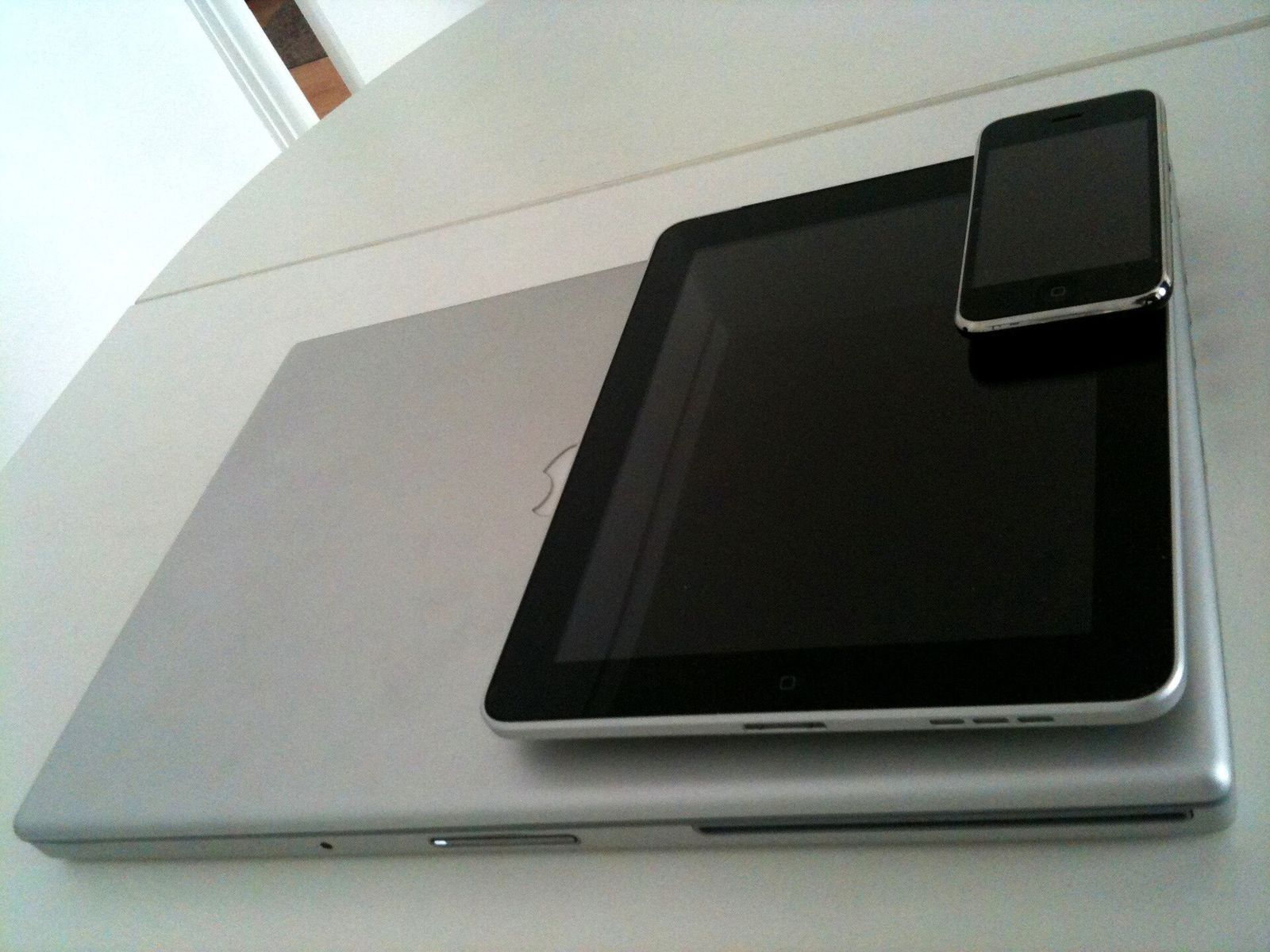
- Size comparison between a MacBook, an iPad and an iPhone · Photo: Michael Reuter, CC BY 2.0 (Resized)