 Haplo
Haplo
How to Run an LLM Locally on a Mac
Five ways to run a language model on your own Mac, with the commands we ran on an M2 MacBook Pro: how much memory each model size needs, which open models to start with in October 2026, how fast they run, and what stays on the machine.
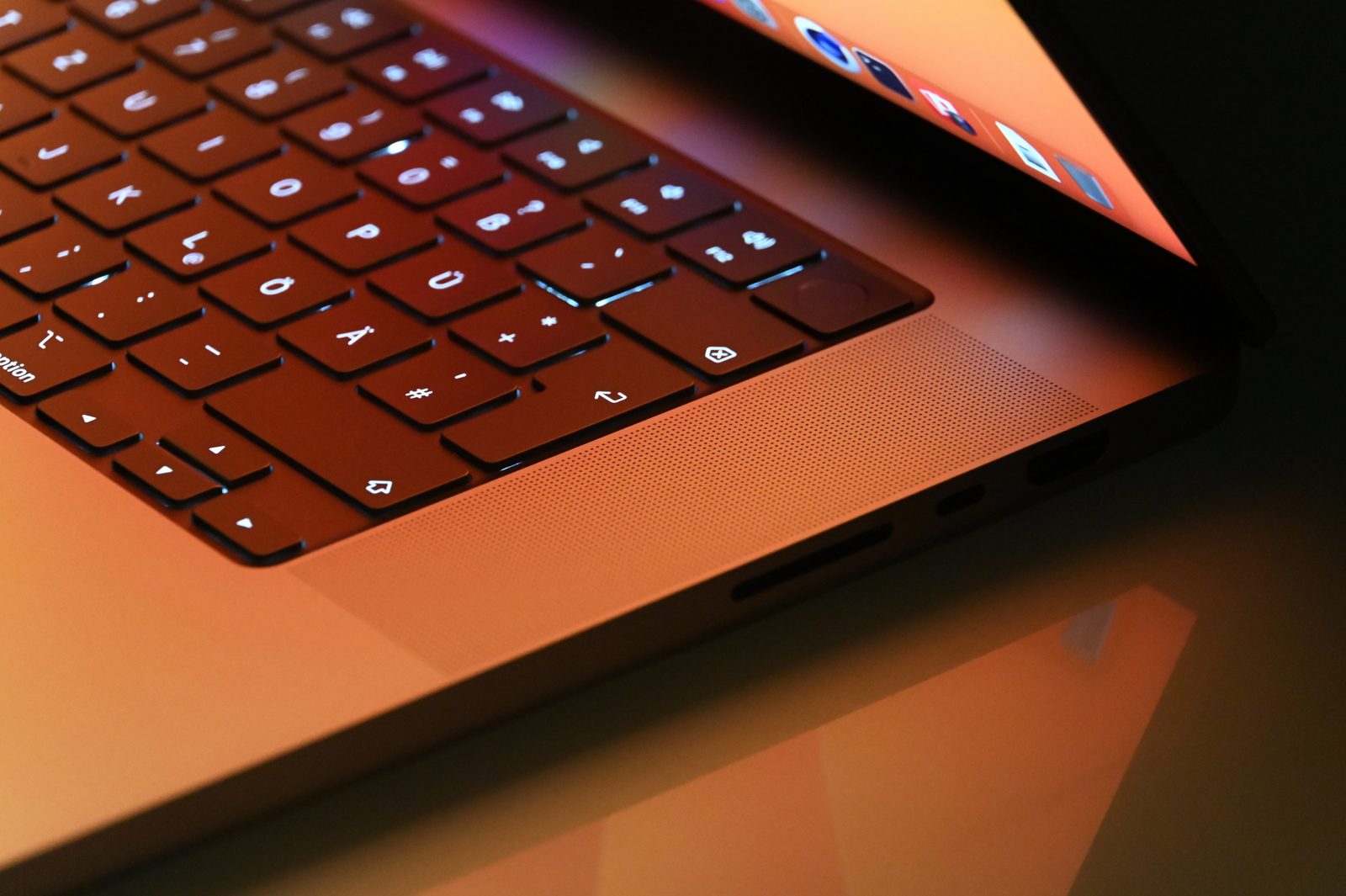
To run an LLM locally on a Mac, install a local runner such as Ollama, LM Studio, llama.cpp or Apple’s MLX, download an open model that fits in your Mac’s memory, and chat with it on the machine itself, with Wi-Fi off if you like. Memory decides what fits: plan on about 0.6 GB per billion parameters for a 4-bit model, plus room for the conversation, so a 16 GB Mac handles models of up to about 14 billion parameters. We make Haplo AI, a Mac and iPhone app that downloads open models such as Qwen and Phi and runs them on the device, so it’s the fifth way below.
We ran the commands marked as tested on an M2 MacBook Pro with 24 GB of memory in October 2026, and quote the rest from each project’s documentation. For phones, see how to run AI offline on your iPhone.
Five ways to run an LLM on a Mac, compared
All five run open-weight models on your Mac’s own chip. They differ in how you use them and what else they do.
| Way | What it is | Install with | Intel Macs | Serves other apps |
|---|---|---|---|---|
| Ollama | Command-line tool and desktop app | App or script | CPU only | Yes |
| LM Studio | Desktop app with a model browser and a command-line tool | App | No | Yes |
| llama.cpp | The open-source engine that runs GGUF models in Ollama, LM Studio and Haplo AI (on Apple silicon, Ollama and LM Studio also use MLX) | Homebrew | CPU only (Homebrew build) | Yes |
| MLX LM | Apple’s Python package for running LLMs with its MLX framework | pip | No | Yes |
| Haplo AI | Our app for Mac, iPhone and iPad | Mac App Store | No | No |
In short: Ollama if you like Terminal or want a local API for other tools, LM Studio to browse and try models in a window, llama.cpp for the most control, MLX if you work in Python, and Haplo AI for a Mac app with a ready-made model list and no Terminal.
How much memory do you need to run an LLM on a Mac?
About 0.6 GB per billion parameters for a 4-bit model, 1.1 GB at 8-bit and 2.2 GB at 16-bit, plus memory for the conversation and for macOS.
On Apple silicon, the CPU and GPU share one pool of memory. Apple describes the M1’s “unified memory architecture” as “high-bandwidth, low-latency memory” in “a single pool” that every part of the chip can use “without copying it” (Apple). So your Mac’s memory is also the GPU’s memory, and its size decides which models fit.
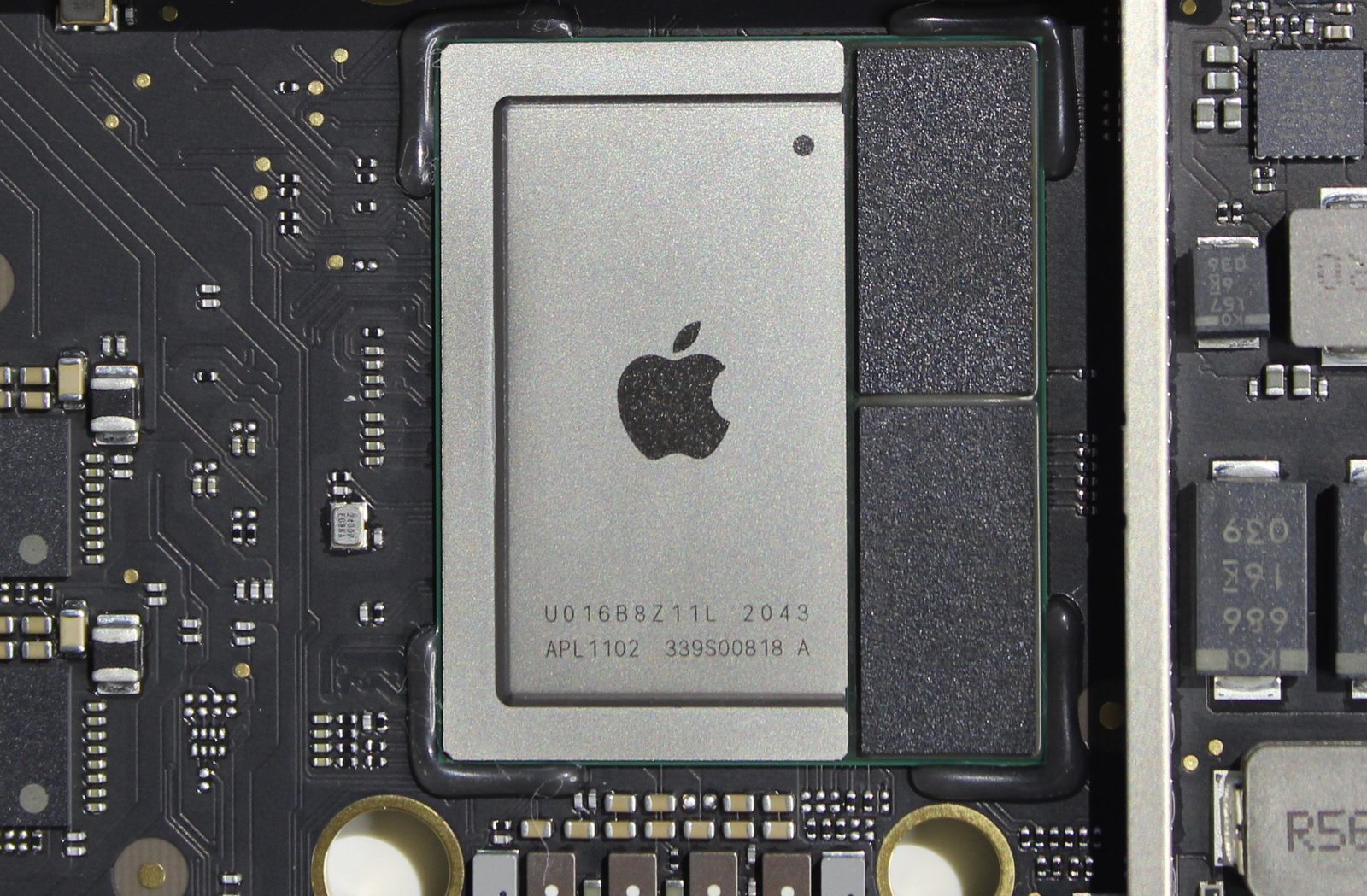
The rule of thumb. A model’s size is its parameter count times the bits stored per parameter. Google’s Gemma 4 documentation puts its 31-billion-parameter model at 17.5 GB in 4-bit, 34.9 GB in 8-bit and 69.9 GB in 16-bit, including a 20 percent overhead: about 0.6, 1.1 and 2.2 GB per billion parameters. llama.cpp’s usual 4-bit format, Q4_K_M, averages 4.89 bits per weight on Llama 3.1 8B, against 16.0 uncompressed (llama.cpp), and Ollama’s Llama 3.1 8B is 4.9 GB at Q4_K_M, 8.5 GB at 8-bit and 16 GB at 16-bit (Ollama).
The conversation. A model keeps a cache of the conversation so far, the KV cache, which grows with every token. In llama.cpp, Qwen2.5-Coder 14B (9.0 GB of weights) needed 0.8 GB more at a 4,096-token context and 6.4 GB more at 32,768. So Ollama picks its default context by GPU memory: 4k tokens below 24 GB, 32k from 24 to 48 GB and 256k from 48 GB up (Ollama). Ours got 4,096.
What macOS keeps. On our 24 GB M2, Ollama, llama.cpp and MLX all reported the same GPU limit: 17.8 GB, about three quarters of the total. The MLX LM documentation describes raising it on macOS 15 or later with sudo sysctl iogpu.wired_limit_mb=N, with N between the model’s size and your memory in megabytes; we left ours alone.
Mixture of experts. A name like Gemma 4 26B A4B means 26 billion parameters in all, about 4 billion used per token. These run about as fast as a small model, but Google notes “all 26 billion parameters must be loaded into memory,” so size them by the first number.
How big a model fits on your Mac
Our working limit is a download of about half your memory on an 8 GB Mac and about 60 percent from 16 GB up, which leaves room for some context and your other apps. Sizes are Ollama’s 4-bit downloads. Where we give a range, Ollama’s library lists two builds: the MLX build that Ollama 0.40 and later downloads on Apple silicon, and the llama.cpp build that older versions and Intel Macs get, which the 0.32.12 we tested fetched.
| Mac memory | Models that fit at 4-bit | Download size to aim for | Examples |
|---|---|---|---|
| 8 GB | Up to about 4 billion parameters | Up to about 4 GB | Qwen3.5 4B (3.3 to 4.0 GB), Ministral 3 3B (3.0 GB), Phi-4-mini (2.5 GB), Llama 3.2 3B (2.0 GB) |
| 16 GB | Up to about 14 billion | Up to about 10 GB | Qwen3.5 9B (6.6 to 7.6 GB), Gemma 4 12B (7.7 to 8.0 GB), Phi-4 and Ministral 3 14B (9.1 GB each) |
| 24 to 32 GB | About 20 to 30 billion | About 15 GB on 24 GB, 20 GB on 32 GB | gpt-oss-20b (14 GB), Mistral Small 3.2 24B (15 GB), Gemma 4 26B A4B (16 to 19 GB), Qwen3.8 27B (18 GB), Gemma 4 31B (19 to 20 GB) |
| 64 GB and up | 70 billion, or large mixture-of-experts models | About 60 percent of memory | Qwen3.6 35B-A3B (23 to 24 GB) on 64 GB; Llama 3.3 70B (43 GB, tight on 64 GB); gpt-oss-120b (65 GB) and Qwen3.5 122B-A10B (81 GB) on 128 GB |
Apple doubled the MacBook Air’s starting memory from 8 GB to 16 GB in October 2024 (Apple), and every Mac it sells now starts at 16 GB or more except the MacBook Neo, launched in March 2026, which comes only with 8 GB (Apple). So an 8 GB Mac is either a MacBook Neo or an older model.
How to run an LLM on a Mac with Ollama
Install Ollama, then type ollama run and a model name in Terminal: it downloads the model the first time and opens a chat. We tested Ollama 0.32.12. Since version 0.40, Ollama on Apple silicon runs models that MLX supports, such as Gemma 4 and Qwen3.5, on MLX by default, and others, such as gpt-oss and Phi-4, on llama.cpp (release notes); the version we tested used llama.cpp for all of them.
-
Install it. Ollama needs macOS Sonoma (14) or newer (docs). Download the app from ollama.com/download, or use the install script from Ollama’s README:
curl -fsSL https://ollama.com/install.sh | sh -
Run a model that fits. The docs’ example,
ollama run gemma4, fetches Gemma 4 E4B, a 6.6 to 9.5 GB download. Add a size tag from Ollama’s library to choose; on an 8 GB Mac, for example:ollama run qwen3.5:4b -
Check the speed. Add
--verboseand Ollama prints timings after each reply. With Qwen2.5 7B, our M2 showed:eval count: 108 token(s) eval rate: 17.99 tokens/s -
Check it’s on the GPU. In
ollama ps,100% GPUunder PROCESSOR means the whole model is on the GPU (FAQ):NAME ID SIZE PROCESSOR CONTEXT UNTIL qwen2.5:7b 845dbda0ea48 4.7 GB 100% GPU 4096 4 minutes from now -
Use it from other apps. Ollama serves a REST API at
localhost:11434. This is the README’s request, with a model we had:curl http://localhost:11434/api/chat -d '{ "model": "qwen2.5:3b", "messages": [{ "role": "user", "content": "Why is the sky blue?" }], "stream": false }' -
Tidy up.
ollama lslists your models,ollama stopunloads one andollama rmdeletes it. They live in~/.ollama/models.
Ollama also has cloud models, which run on Ollama’s servers and carry a tag ending in cloud, such as gemma4:cloud (docs) or gpt-oss:120b-cloud (library). To keep it local only, set OLLAMA_NO_CLOUD=1 and restart it; our server log then read Ollama cloud disabled: true.
How to run an LLM on a Mac with LM Studio
Download LM Studio, get a model in its Discover tab, load it in the Chat tab and chat. LM Studio isn’t installed on our test Mac, so these steps come from its documentation.
-
Check your Mac. LM Studio needs Apple silicon and macOS 14.0 or newer, recommends 16 GB or more, and doesn’t support Intel Macs. On 8 GB Macs, its docs say to “stick to smaller models and modest context sizes” (LM Studio).
-
Install it from lmstudio.ai/download, choosing LM Studio rather than LM Studio Bionic, a separate agent app. The plans on LM Studio’s pricing page are Bionic’s: its Free plan runs local models, and a $20-a-month Bionic+ plan adds open models hosted in the cloud.
-
Download a model in the Discover tab (⌘2): search by name, then pick a version. The docs’ advice is 4-bit or higher if your machine can run it (LM Studio). On Apple silicon it runs both GGUF models, with llama.cpp, and MLX models.
-
Load it and chat. In the Chat tab, open the model loader (⌘L), choose the model and start typing.
-
Or use Terminal. The
lmscommand comes with the app; open LM Studio once first (CLI docs):lms get llama-3.1-8b lms load <model_key> lms chat lms server start
lms load --estimate-only prints a memory estimate without loading, and the server speaks the OpenAI API (LM Studio’s examples use http://localhost:1234/v1).
How to run an LLM on a Mac with llama.cpp
Install llama.cpp with Homebrew, then run llama cli -hf with a model’s Hugging Face name: it downloads the file and opens a chat in Terminal. We tested Homebrew’s build b9730.
-
Install it (docs):
brew install llama.cppThe README also offers
curl -LsSf https://llama.app/install.sh | sh. Older guides usellama-cliandllama-server; our build has those alongside the newerllamacommand. -
Run a model from Hugging Face. The README’s example is
llama cli -hf ggml-org/Qwen3.5-0.8B-GGUF. That repository has no Q4_K_M file, so-hfdownloads its 834 MB Q8_0 file instead, and we named the 563 MB 4-bit version:llama cli -hf ggml-org/Qwen3.5-0.8B-GGUF:Q4_0After each reply it prints the speed; on our M2,
[ Prompt: 111.5 t/s | Generation: 51.2 t/s ]. Qwen3.5 reasoned before answering in our test, and--reasoning offskips that. -
Serve it.
llama serve -hf ggml-org/Qwen3.5-0.8B-GGUF:Q4_0started a server athttp://127.0.0.1:8080with a built-in web chat and an OpenAI-compatible/v1/chat/completionsendpoint, which we called with curl. -
Go offline. Our build kept downloads in
~/.cache/huggingface/hub(llama cli --cache-listlists them), and--offlinemakes it use that cache without touching the network.
How to run an LLM on a Mac with Apple’s MLX
Install the mlx-lm Python package and run mlx_lm.generate or mlx_lm.chat with an MLX model from Hugging Face. MLX is Apple’s open-source machine learning framework, and it needs an Apple silicon Mac, a native Python 3.10 or newer, and macOS 14.0 or newer (MLX docs). We tested mlx-lm 0.32.0.
-
Install it, here in a throwaway virtual environment:
python3 -m venv mlx-venv source mlx-venv/bin/activate pip install mlx-lm -
Generate. The README’s quick start,
mlx_lm.generate --prompt "How tall is Mt Everest?", usesmlx-community/Llama-3.2-3B-Instruct-4bit, a 1.8 GB download. We named the 713 MB 1B version:mlx_lm.generate --model mlx-community/Llama-3.2-1B-Instruct-4bit --prompt "How tall is Mt Everest?"It ended with:
Generation: 32 tokens, 69.662 tokens-per-sec Peak memory: 0.772 GB -
Chat.
mlx_lm.chat --model mlx-community/Llama-3.2-1B-Instruct-4bitopens a chat in Terminal; ours replied at 73.8 tokens per second. -
Serve it.
mlx_lm.server --model <path_to_model_or_hf_repo>runs an HTTP API on port 8080 of localhost, though its docs say it isn’t recommended for production as it “only implements basic security checks” (MLX LM). -
Run offline. MLX fetches models with Hugging Face’s library, which checks for a newer version each time a model loads. Set
HF_HUB_OFFLINE=1and “no HTTP calls will be made” (Hugging Face); we re-ran the generate command that way, from the cache.
Hugging Face’s MLX Community has ready-made MLX versions of thousands of models.
How to run an LLM on a Mac with Haplo AI
Haplo AI is our app for running open models without Terminal: download one from a list of models small enough for a Mac’s memory, and chat. It’s a native macOS app, not the iPhone app running on a Mac, and needs macOS 15.0 or later and an M1 or later (App Store). It’s free to download, but new users subscribe before they can chat: the US App Store lists Haplo AI Premium at $1.99 a month or $12.99 a year. One App Store app covers iPhone, iPad and Mac, a universal purchase, which Apple describes as access to an app and its in-app purchases across platforms “with a single purchase” (Apple).
The steps, checked against the app’s code:
-
Install it from the Mac App Store. Setup includes the subscription screen, and on macOS 15 it also has you download a first model before you can chat.
-
Download a model. Click the brain icon in the toolbar. The list comes from our server, and models it judges too big are labelled “Incompatible with device”, with no download button. Version 2.3, the Mac version on sale as we write, doesn’t tell the server how much memory your Mac has, so every Mac gets the list for an 8 GB Mac: 13 of the 16 text models (files up to 2.5 GB), with Qwen3-4B (2.5 GB) marked Recommended. Files download from Hugging Face.
-
Chat. Start a new chat, pick a model and type. Each chat keeps its model, and chats are saved on the Mac.
-
Know what goes online. Automatic Tools is on by default: with a capable model, such as Qwen3-4B, Haplo AI can pick web search on its own, which sends your message to a search engine. It doesn’t run with Apple’s model or with small models such as Qwen3.5-2B. In version 2.3, the Mac version on sale as we write, you can turn it off with the Automatic Tools switch in Settings (the gear icon). Web search, maps and the browser still go online when you pick them from the Tools menu.
It runs 4-bit GGUF models with llama.cpp: Alibaba’s Qwen (0.5B to 4B on a Mac in version 2.3), Microsoft’s Phi-4-mini, Mistral’s Ministral 3 3B and Hugging Face’s SmolLM. On macOS 26 or later with Apple Intelligence turned on, it can also use Apple’s own on-device model.
The limits: it’s a subscription, version 2.3 for Mac downloads models of up to 4 billion parameters, it doesn’t serve other apps the way Ollama and LM Studio do, and it needs Apple silicon. Its App Store privacy label is “Data Not Collected”.
Which LLM should you run on a Mac?
The largest recent model that fits your memory with room to spare. In October 2026 that means Qwen3.5 4B on an 8 GB Mac, Qwen3.5 9B or Gemma 4 12B on 16 GB, gpt-oss-20b or a 24B model on 24 GB, Qwen3.8 27B or Gemma 4 31B on 32 GB, Qwen3.6 35B-A3B on 64 GB (Llama 3.3 70B fits too, but tightly), and gpt-oss-120b on 128 GB.
These open families are worth starting with, checked on each maker’s Hugging Face pages, with sizes from Ollama’s library:
| Family | Maker, licence | Sizes | Try in Ollama |
|---|---|---|---|
| Qwen3.5, 3.6 and 3.8 | Alibaba, Apache 2.0 | 3.5: 0.8B to 397B (February to March 2026); 3.6: 27B, 35B-A3B (April); 3.8: 27B (August) | qwen3.5:4b (3.3 to 4.0 GB), qwen3.5:9b (6.6 to 7.6 GB), qwen3.6:35b (23 to 24 GB), qwen3.8:27b (18 GB) |
| Gemma 4 | Google, Apache 2.0 | E2B, E4B, 12B, 26B A4B, 31B | gemma4:e2b (4.6 to 7.5 GB), gemma4:12b (7.7 to 8.0 GB), gemma4:31b (19 to 20 GB) |
| gpt-oss | OpenAI, Apache 2.0 | 20b (21B, 3.6B active), 120b (117B, 5.1B active) | gpt-oss:20b (14 GB), gpt-oss:120b (65 GB) |
| Ministral 3, Mistral Small | Mistral AI, Apache 2.0 | 3B, 8B, 14B; 24B | ministral-3:8b (6.0 GB), mistral-small3.2 (15 GB) |
| Phi-4 | Microsoft, MIT | Phi-4-mini 3.8B; Phi-4 and Phi-4-reasoning 14B | phi4-mini (2.5 GB), phi4 (9.1 GB) |
| Llama | Meta, Llama licences | 3.2: 1B, 3B; 3.1: 8B; 3.3: 70B; Llama 4 Scout: 109B | llama3.2 (2.0 GB), llama3.1:8b (4.9 GB), llama3.3 (43 GB) |
| DeepSeek R1 distilled | DeepSeek, MIT (Llama-based ones also under Meta’s Llama licences) | 1.5B to 70B, built on Qwen and Llama | deepseek-r1:8b (5.2 GB) |
What the table doesn’t show:
- Meta’s newest open LLM isn’t a Llama. Muse Glimmer (August 2026, Apache 2.0, 30B) is built to run locally, an 18 GB download as
muse-glimmerin Ollama (Meta). Meta’s newest Llama models are the Llama 4 releases of April 2025. Downloading Llama from Meta’s own Hugging Face pages means requesting access first; most copies converted by others, such as the MLX Community’s Llama 3.2 1B we ran above, download without an account. - DeepSeek’s own models are too big (DeepSeek-V4-Flash has 284 billion parameters). The
deepseek-r1models people run locally are smaller ones trained on its reasoning: the 8B default is Qwen3 8B Base, post-trained on “the chain-of-thought from DeepSeek-R1-0528” (DeepSeek). - Reasoning takes time. Qwen3.8 has thinking “on by default” (Qwen), and gpt-oss lets you set reasoning effort to low, medium or high (OpenAI). You wait for those tokens before the answer starts.
- Small models get things wrong. Asked to name three planets, the same 0.8-billion-parameter model answered “Jupiter, Saturn, and Uranus” on one run and “The four largest planets of our solar system are Jupiter, Saturn, Mars, and Earth” on another. Use the biggest model your Mac runs comfortably, and check anything that matters.
How fast is a local LLM on a Mac?
Fast enough to read along with, and faster the more memory bandwidth the chip has: a 7-billion-parameter model at 4-bit writes about 22 tokens per second on a base M2 and 83 on a 40-core M4 Max, in llama.cpp’s benchmarks.
To write each token, the chip reads the model’s weights from memory, so generation speed tracks memory bandwidth. These rows come from the llama.cpp project’s benchmark thread for Apple silicon, all running the same 7B Llama model at 4-bit (Q4_0):
| Chip (GPU cores) | Memory bandwidth | Tokens per second |
|---|---|---|
| M1 (8) | 68 GB/s | 14.2 |
| M2 (10) | 100 GB/s | 21.9 |
| M4 (10) | 120 GB/s | 24.1 |
| M5 (10) | 154 GB/s | 31.9 |
| M4 Pro (20) | 273 GB/s | 50.7 |
| M5 Pro (20) | 307 GB/s | 66.3 |
| M4 Max (40) | 546 GB/s | 83.1 |
| M5 Max (40) | 614 GB/s | 119.9 |
| M3 Ultra (80) | 800 GB/s | 92.1 |
| M5 Ultra (80) | 1,228 GB/s | 179.1 |
On one chip, bigger models are proportionally slower. On our M2, Ollama wrote 18 tokens per second with Qwen2.5 7B (4.7 GB) and 7 with Qwen2.5-Coder 14B (9.0 GB); Qwen3.5 0.8B in llama.cpp managed about 50, and Llama 3.2 1B in MLX about 70. Reading your prompt is quicker: llama-bench processed 158 prompt tokens per second with the 7B model. Simulators shared the GPU during some runs, when the same MLX command fell to 36 tokens per second, so treat our figures as a floor.
Can you run an LLM on an Intel Mac?
Yes, on the CPU: Ollama supports Intel processors on the CPU only, and so does llama.cpp as Homebrew builds it, while LM Studio, MLX and Haplo AI need Apple silicon.
Ollama supports “Apple M series (CPU and GPU support) or x86 (CPU only)” (docs), and llama.cpp supports x86 instruction sets such as AVX2 and AVX-512, while its Metal backend targets Apple silicon (README). Homebrew builds llama.cpp without Metal on Intel Macs, as does the project’s own Intel Mac download, so there it runs on the CPU. LM Studio says “Intel-based Macs are currently not supported,” MLX needs Apple silicon, and Haplo AI an M1 or later. Without the GPU, start with a small model.
What stays on your Mac when you run an LLM locally?
Your prompts and the model’s answers are processed on the Mac. What crosses the network is model downloads, model-list and update checks, and cloud or web features. Ollama’s and LM Studio’s cloud and web features are opt-in, but Haplo AI’s Automatic Tools are on by default on a Mac and can send a message to a search engine.
- Prompts and replies. “Ollama runs locally. We don’t see your prompts or data when you run locally,” says Ollama’s FAQ. LM Studio says that once a model is on your machine, “nothing you enter into LM Studio when chatting with LLMs leaves your device” (LM Studio).
- Model downloads come from Hugging Face (LM Studio, llama.cpp, MLX and Haplo AI) or Ollama’s registry.
- Background checks. LM Studio checks for app updates when it opens and goes online to search for models and download runtimes. MLX checks Hugging Face for a newer model file on each load unless
HF_HUB_OFFLINE=1is set; llama.cpp’s--offlinedoes the same job. - Cloud features run on someone else’s servers: Ollama’s cloud models and web search, and the cloud models in LM Studio Bionic, a separate app from LM Studio.
OLLAMA_NO_CLOUD=1turns Ollama’s off. - Local servers listen only on your own Mac (127.0.0.1) unless you change that: Ollama and LM Studio default to it, and so did our
llama serve. LM Studio recommends turning on authentication if you open its server to the network. - Haplo AI sends our server the device type and the app’s version numbers to get its model list. Its web search, Maps and Browser tools send their queries online (web search to DuckDuckGo or Bing; Maps to Apple), while its Calendar, chart and image tools run on the Mac.
Local LLMs on a Mac: questions
Can a Mac with 8 GB of memory run an LLM?
Yes, small ones: models up to about 4 billion parameters at 4-bit, 2 to 4 GB downloads such as Qwen3.5 4B or Phi-4-mini. LM Studio tells 8 GB Mac owners to stick to smaller models and modest context sizes, and Haplo AI offers files up to 2.5 GB on them.
What is the best local LLM for a Mac?
The largest recent open model that fits your memory with room to spare. In October 2026: Qwen3.5 4B on 8 GB, Qwen3.5 9B or Gemma 4 12B on 16 GB, gpt-oss-20b on 24 GB, Qwen3.8 27B on 32 GB, and Qwen3.6 35B-A3B on 64 GB, or Llama 3.3 70B if you accept a tight fit.
Is Ollama or LM Studio better on a Mac?
They run the same open models, so pick by how you work. Ollama is quickest from Terminal, serves other apps on port 11434 and also runs on Intel Macs (CPU only). LM Studio gives you a model browser and a chat window, needs Apple silicon, and has its own command-line tool and server.
Does a local LLM work without internet?
Yes, once the model is downloaded: all five ways run downloaded models on the Mac itself. For llama.cpp and MLX, --offline and HF_HUB_OFFLINE=1 also stop them checking Hugging Face for updates.
How much disk space do local LLMs need?
As much as the download: about half a gigabyte for a 0.8B model at 4-bit, 43 GB for Llama 3.3 70B. Ollama keeps models in ~/.ollama/models; our llama.cpp and MLX downloads went to ~/.cache/huggingface/hub.
How we tested this
We ran everything on an M2 MacBook Pro (10-core GPU, 24 GB) with macOS 27.0 on October 4, 2026:
- Ollama 0.32.12 (Homebrew): the server with
OLLAMA_NO_CLOUD=1,ollama run --verbosewith Qwen2.5 3B, 7B and Coder 14B (already on the Mac),ollama ps,ollama lsand the README’s/api/chatrequest. - llama.cpp b9730 (Homebrew):
llama cli -hf ggml-org/Qwen3.5-0.8B-GGUF:Q4_0(with-pand-stto script it),--reasoning off,--offline,llama servewith two API requests,llama-benchon four models, and verbosellama-completionlogs for the KV cache sizes. - mlx-lm 0.32.0 in a throwaway virtual environment:
mlx_lm.generateandmlx_lm.chatwith Llama 3.2 1B 4-bit,mlx_lm.generateagain withHF_HUB_OFFLINE=1, andmx.device_info()for the GPU limit. We then deleted the environment and every model we had downloaded.
Quoted from the docs, not run: the install scripts, model tags we didn’t have, ollama rm, every LM Studio step (we didn’t install it), mlx_lm.server and the sysctl setting.
For Haplo AI, we read the source code (macOS build settings, model list requests, subscription screen, tools), requested the live model list as version 2.3 of the Mac app does, and took the price, requirements and privacy label from the App Store listing. We didn’t open the app for this article. Model facts come from the makers’ Hugging Face pages, Google’s Gemma 4 documentation and Ollama’s library, chip speeds from llama.cpp’s benchmark thread, and the photos from Wikimedia Commons.
References
- Ollama. README; macOS, CLI, FAQ, Context length and Cloud documentation; model library; v0.40.0 release notes.
- LM Studio. System requirements, Get started, Download an LLM, Offline operation, lms CLI, OpenAI compatibility, LM Studio Bionic and Bionic pricing.
- llama.cpp. README, Install, CLI options, Quantize README and Performance of llama.cpp on Apple Silicon M-series.
- Apple MLX. Installation, MLX LM README and MLX LM server.
- Hugging Face. huggingface_hub environment variables.
- Google. Gemma 4 model overview.
- Model pages on Hugging Face: Qwen3.5-9B, Qwen3.6-27B, Qwen3.6-35B-A3B, Qwen3.8-27B, Gemma 4 31B, gpt-oss-20b, Ministral 3 14B, Phi-4, Llama 3.3 70B, Llama 4 Scout, Muse Glimmer 30B, DeepSeek-V4-Flash and DeepSeek-R1-0528-Qwen3-8B.
- Apple Newsroom. Apple unleashes M1, November 10, 2020; New MacBook Pro features M4 family of chips and Apple Intelligence, October 30, 2024; Say hello to MacBook Neo, March 4, 2026.
- Apple. MacBook Neo tech specs.
- Apple Developer. Add platforms (App Store Connect Help).
- iFixit. M1 MacBook Pro and Air Teardowns.
- App Store. Haplo AI: Offline & Private AI.
Image credits
- Apple MacBook Pro 16" M2 Max closeup · Photo: SimonWaldherr, CC BY-SA 4.0 (Resized)
- M1 A13 comparison MacMini9 1 M1 · Photo: Sonic8400, CC BY-SA 4.0 (Cropped to the M1 package and resized)