 Haplo
Haplo
How to Convert Markdown to PDF on a Mac
We ran one test file through Pandoc 3.12, the Markdown PDF extension for VS Code and Markdown2PDF. Here are the steps, the exact commands, and how each one handled tables, code, Mermaid diagrams, maths and page breaks.
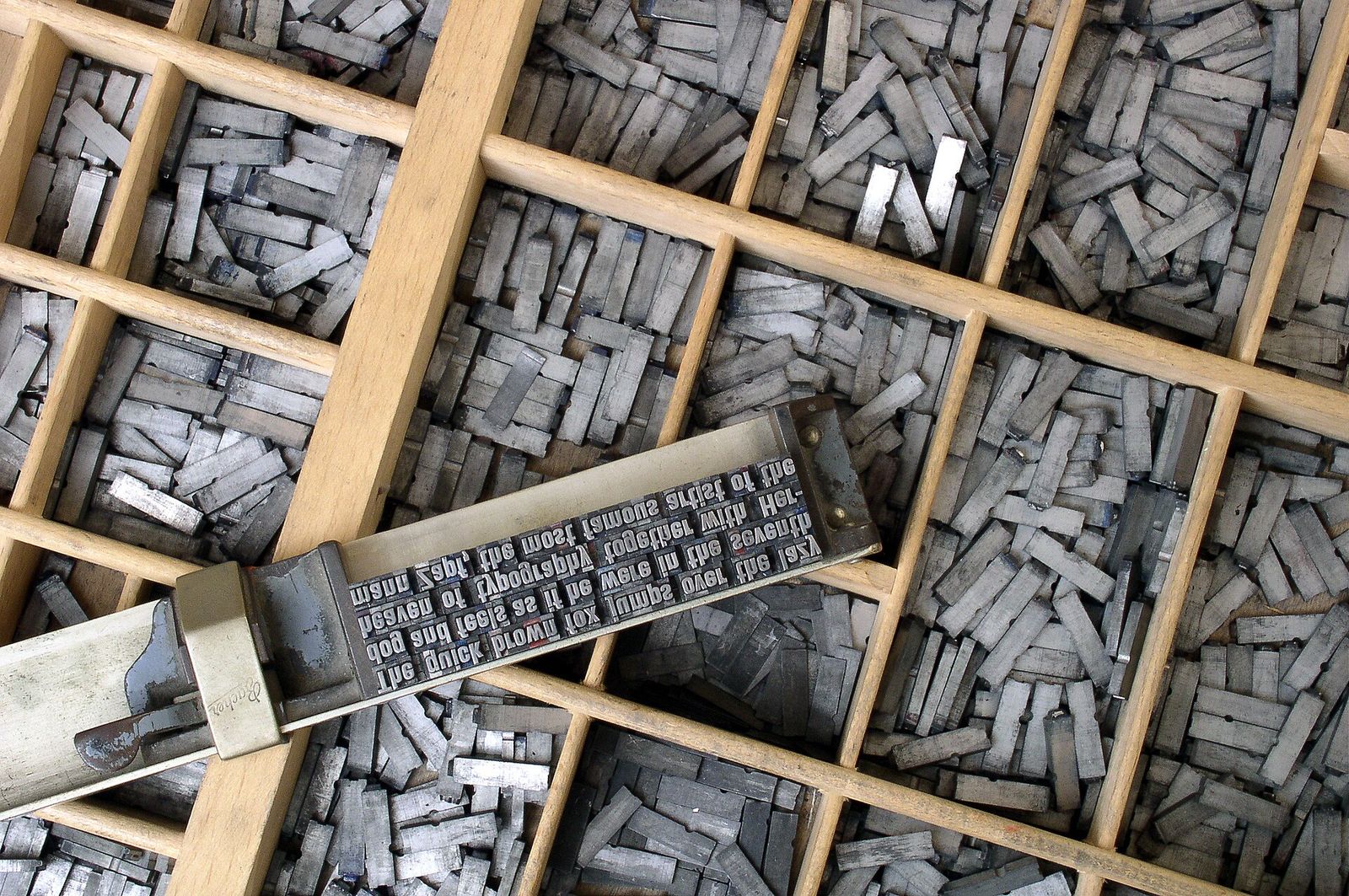
To convert Markdown to PDF on a Mac, you need a tool that lays the text out on pages: Pandoc in Terminal, the free Markdown PDF extension for VS Code, or a Mac app such as Markdown2PDF, the one we make. Pandoc gives you the most control but needs a separate PDF engine, such as TeX or a browser, to finish the job, the VS Code extension is the easiest free route, and Markdown2PDF needs no setup, though its PDF pages are images, so the text can’t be selected or searched.
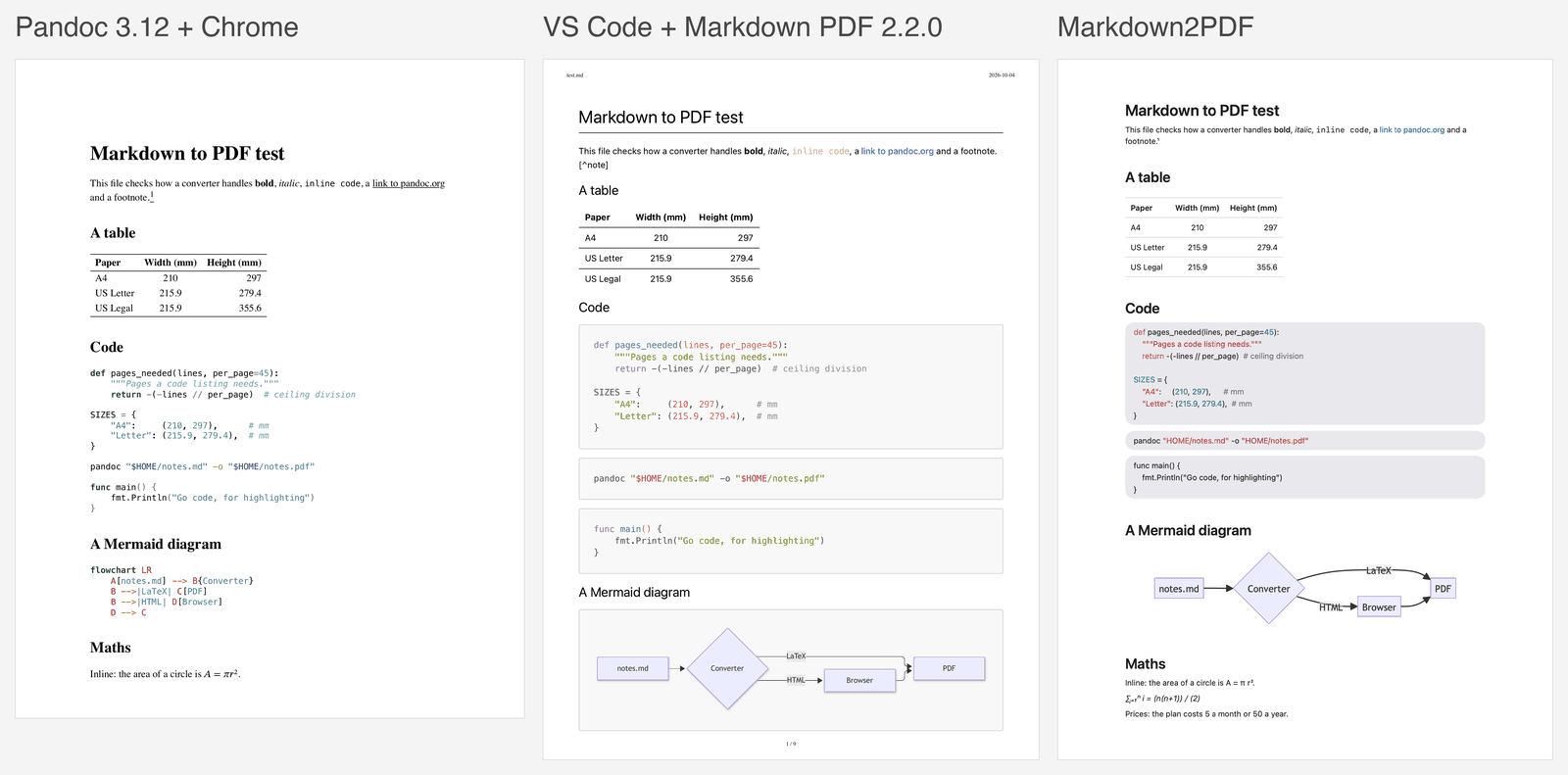
Why a tool at all? Markdown’s original description calls it “a text-to-HTML conversion tool for web writers”: it was made for web pages, so something has to decide where each page ends and how tables, code, diagrams and equations are drawn. That’s where the routes differ, so in October 2026 we ran one test file through all three and compared the PDFs.
Which way should you use?
Use Pandoc for long or maths-heavy documents, the VS Code extension if you already write in VS Code, and Markdown2PDF if you want a PDF of a README or notes without installing anything else.
- Pandoc for real equations, long documents or a particular layout. It’s free and the most flexible, but its default route needs TeX (BasicTeX is a 134 MB download) and Terminal.
- VS Code with Markdown PDF if you already write in VS Code. It’s free, with selectable text, maths that works offline and Mermaid diagrams that need a connection. It skips footnotes.
- Markdown2PDF for a tidy PDF of a README, notes or a short spec with no setup, Mermaid included. The trade-off: its pages are images, so the text can’t be selected or searched.
How to convert Markdown to PDF with Pandoc
Pandoc converts a Markdown file to PDF with one command, pandoc notes.md -o notes.pdf, as long as TeX is installed (by default Pandoc makes the PDF with pdflatex; --pdf-engine names another engine). It’s a free, open-source converter between document formats, and version 3.12 came out on September 29, 2026. It understands the Markdown extras that trip up simpler tools, including pipe tables, footnotes, task lists and TeX maths.
Install Pandoc and a PDF engine
Pandoc doesn’t draw PDFs itself. By default it writes LaTeX and hands it to a LaTeX engine, pdflatex, so you need a TeX distribution too. With Homebrew:
brew install pandoc
brew install --cask basictex
BasicTeX is the compact TeX distribution for the Mac, a 134 MB download in its 2026 edition. The full MacTeX works as well, but Pandoc’s install guide points out that it uses four gigabytes of disk space and recommends BasicTeX or TinyTeX. Homebrew’s BasicTeX page says to restart your Terminal window afterwards so the TeX commands are found. If Pandoc then reports missing fonts, the install guide’s fix is tlmgr install collection-fontsrecommended.
Skip TeX and the conversion stops. On our test Mac, which has no TeX, Pandoc 3.12 replied: 'pdflatex' not found. Please select a different --pdf-engine or install 'pdflatex'. The route after the next section doesn’t need it.
Convert the file
With TeX installed, this is the whole job:
pandoc notes.md -o notes.pdf
The .pdf ending on the output file is what tells Pandoc to make a PDF. Four options cover most of what people want to change:
pandoc notes.md -o notes.pdf \
  -V papersize=letter \
  -V geometry:margin=2cm \
  --toc \
  --syntax-highlighting=tango
-V papersize=lettersets the paper (a4works too) and-V geometry:margin=2cmsets the margins. Both are LaTeX variables.--tocadds a table of contents.--syntax-highlightingpicks the colours for code.pandoc --list-highlight-styleslists eight: pygments (the default), tango, espresso, zenburn, kate, monochrome, breezedark and haddock. Older guides use--highlight-style, which version 3.12 still runs but answers withDeprecated: --highlight-style. Use --syntax-highlighting instead.- To use a font installed on your Mac, switch engines and name it:
--pdf-engine=xelatex -V mainfont="Helvetica Neue". Themainfontvariable works with xelatex and lualatex.
Convert Markdown to PDF without LaTeX
If you’d rather not install TeX, have Pandoc write a web page and let Chrome print it. This is the Pandoc route we ran:
pandoc notes.md -s -o notes.html
"/Applications/Google Chrome.app/Contents/MacOS/Google Chrome" \
  --headless --no-pdf-header-footer --print-to-pdf=notes.pdf notes.html
-smakes a complete, standalone page. Maths becomes MathML, Pandoc’s default math method, which Chrome draws natively, so our equations came out properly typeset with nothing extra installed.--headlessruns Chrome without showing a window, according to Chrome’s Headless mode page. According to Chrome’s command-line reference,--print-to-pdfsaves the page as a PDF, and--no-pdf-header-footerleaves out the header with the date and time and the footer with the web address and page number that Chrome otherwise adds.- Chrome printed on US Letter paper. For A4, save
@page { size: A4; margin: 2cm; }in a file called print.css and add--css print.cssto the pandoc command. With HTML in the middle, you style the PDF with ordinary CSS, and the @page rule sets the paper and margins.
The manual also lists engines that make the PDF without a browser or TeX: WeasyPrint, the default when HTML is in the middle (--pdf-engine=weasyprint), and Typst, a markup-based typesetting system (--pdf-engine=typst). We didn’t install either for this test.
One catch with images: the Homebrew build of Pandoc 3.12 we installed couldn’t download pictures linked from the web. Our LaTeX run warned “pandoc was compiled without HTTP support” and replaced the image with its description. On the Chrome route the browser fetches the picture itself. For the LaTeX route, save web images next to your Markdown file.
How to get Mermaid diagrams into a Pandoc PDF
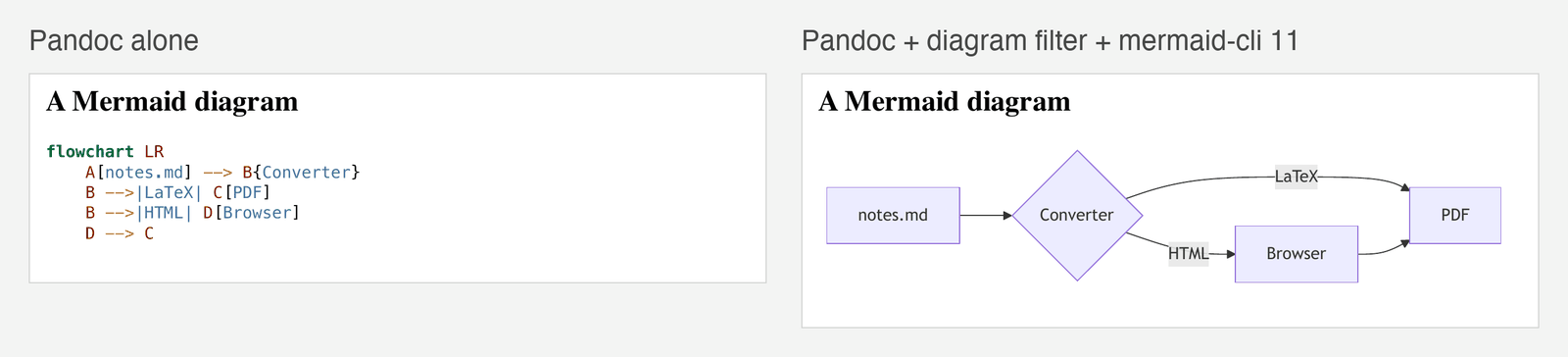
On its own, Pandoc prints a mermaid code block as code; the pandoc-ext/diagram Lua filter turns it into a picture. Mermaid is “a JavaScript based diagramming and charting tool”, so something has to run it, and the filter calls Mermaid’s command-line tool, mmdc, which installs with npm:
npm install -g @mermaid-js/mermaid-cli@11
pandoc notes.md -s --embed-resources --lua-filter diagram.lua -o notes.html
Then print notes.html with Chrome as above. Three details matter:
- Pin mermaid-cli to version 11. Version 12.0.0, released on September 24, 2026, removed the
--pdfFitoption, and the filter still passes it. With 12.0.0 our run printederror: unknown option '--pdfFit', Pandoc carried on with only a warning, and the diagram stayed as code. With 11.17.0 it worked. - Keep
--embed-resourceswhen you write HTML. The filter makes the image but doesn’t save it as a file, and its README says to embed the images this way (or write them out with--extract-media). - Download
diagram.luafrom the filter’s GitHub page first. It also handles Graphviz, PlantUML, TikZ, Asymptote, cetz and D2.
Maths, page breaks, tables and code in Pandoc
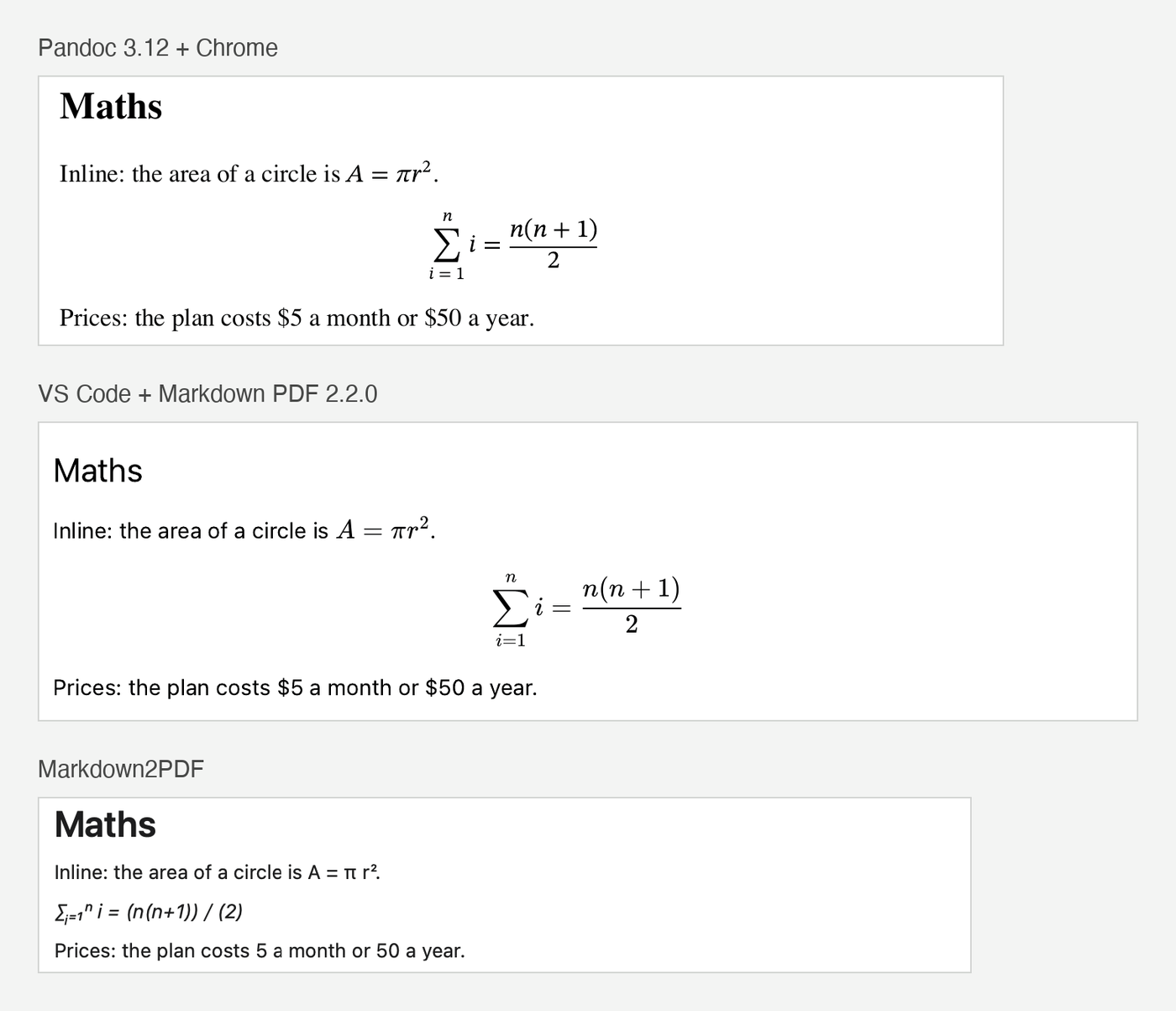
Maths. This is Pandoc’s strongest suit. On the LaTeX route, $...$ and $$...$$ go straight to LaTeX, which typesets them properly, stacked fractions, matrices and all; on the Chrome route they become MathML. Pandoc’s dollar-sign rules are careful with prices, too: the opening $ needs a non-space character right after it, and the closing $ needs a non-space character right before it and can’t be followed by a digit, so “$5 a month or $50 a year” stayed as text in our test.
Page breaks. Markdown has no page-break syntax. The CommonMark spec has thematic breaks (the --- line), headings, code blocks, HTML blocks, paragraphs, block quotes and lists, and nothing for pages. On the LaTeX route, put \newpage on a line of its own: Pandoc passes raw LaTeX through to the LaTeX writer, and \newpage ends the current page. On the Chrome route, use a line of raw HTML, <div style="break-after: page"></div>, which asks for a page break after the element; Chrome started a new page there in our test. Each route ignores the other’s marker (we checked Pandoc’s LaTeX and HTML output), so one file can carry both.
Tables and code. Pandoc’s LaTeX output puts tables in the longtable package, which lets tables “flow over page boundaries”. On the Chrome route, our 60-row table ran over three pages, with the header row repeated at the top of the second and third, and a 180-line code listing ran across four. Code is coloured by Pandoc’s own highlighter: in version 3.12, pandoc --list-highlight-languages lists 194 languages, and our Python, shell and Go blocks were all highlighted.
How to export Markdown to PDF from VS Code
VS Code previews Markdown, and the free Markdown PDF extension by yzane adds the export; the Marketplace counts more than 4 million installs.
- In VS Code, open the Extensions view, search for Markdown PDF and install the one by yzane. Its ID is
yzane.markdown-pdf, and version 2.2.0 came out on July 29, 2026. - Open your
.mdfile. - Right-click in the editor and choose Markdown PDF: Export (pdf). Or press Shift-Command-P (⇧⌘P) to open the Command Palette, type
exportand pick the same command.
The PDF lands in the same folder as your Markdown file. The extension turns the Markdown into HTML and prints it with a Chromium-based browser: an installed Chrome, Edge or Chromium, or a copy of Chromium it downloads on first use (ours used the Mac’s Chrome). According to its README:
- code is highlighted with highlight.js;
- maths renders through KaTeX (added in version 2.1.0), and “rendering runs in Node, so no network access is required”;
- Mermaid is loaded from a CDN (unpkg.com) by default, so diagrams need an internet connection;
- a page break is
<div class="page"/>on its own line; - paper is A4 unless you change
markdown-pdf.format.
In our export, the text could be selected, searched and copied, the link stayed clickable, the maths was typeset, the flowchart was drawn, and our <div style="break-after: page"></div> line started a new page. Two surprises: every page gets a header with the file name and date and a page number at the bottom (the markdown-pdf.displayHeaderFooter setting turns them off), and footnotes aren’t converted, so [^note] and its definition printed exactly as typed.
Not a VS Code user? If your Markdown app shows a rendered preview and can print, macOS can turn that into a PDF: choose File > Print, then click the PDF button, or open the PDF pop-up menu and choose Save as PDF.
How to convert Markdown to PDF with Markdown2PDF
Markdown2PDF turns a Markdown file into a PDF in three steps: open it, check the preview, click Save. It’s the Mac app we make: US$1.99 once, macOS 13 or later, nothing else to install, and the conversion runs on your Mac. These steps are checked against the app’s code and version 1.6, the current Mac version.
- Open your file. Drag a
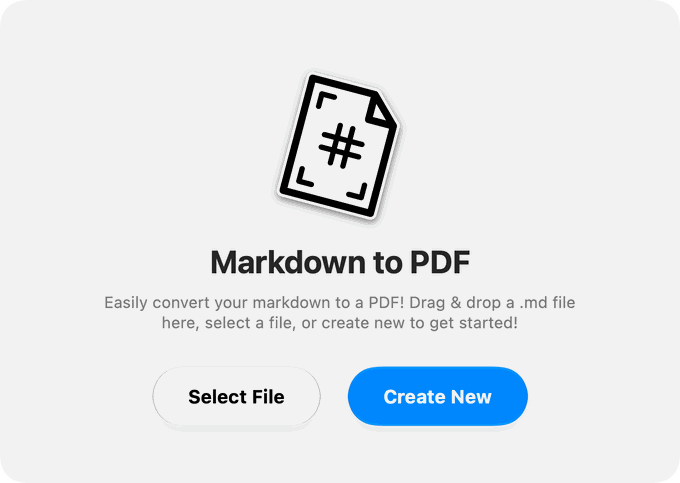
.mdfile onto the Markdown2PDF window, or click Select File. In Finder you can also Control-click the file and choose Open With > md2pdf, the name Finder shows for Markdown2PDF. To start from scratch, click Create New and type or paste. If you used the editor earlier without quitting the app, Create New brings that text back (a file you opened is no longer linked to it), so clear it first.
- Check the preview. The editor opens with your Markdown on the left and a preview on the right, drawn the same way as the PDF. Drag the divider to resize the panes. Edits you make here are saved back to your
.mdfile after a short pause, changes made in another editor show up in the app, and the round arrow at the top right reloads the file.
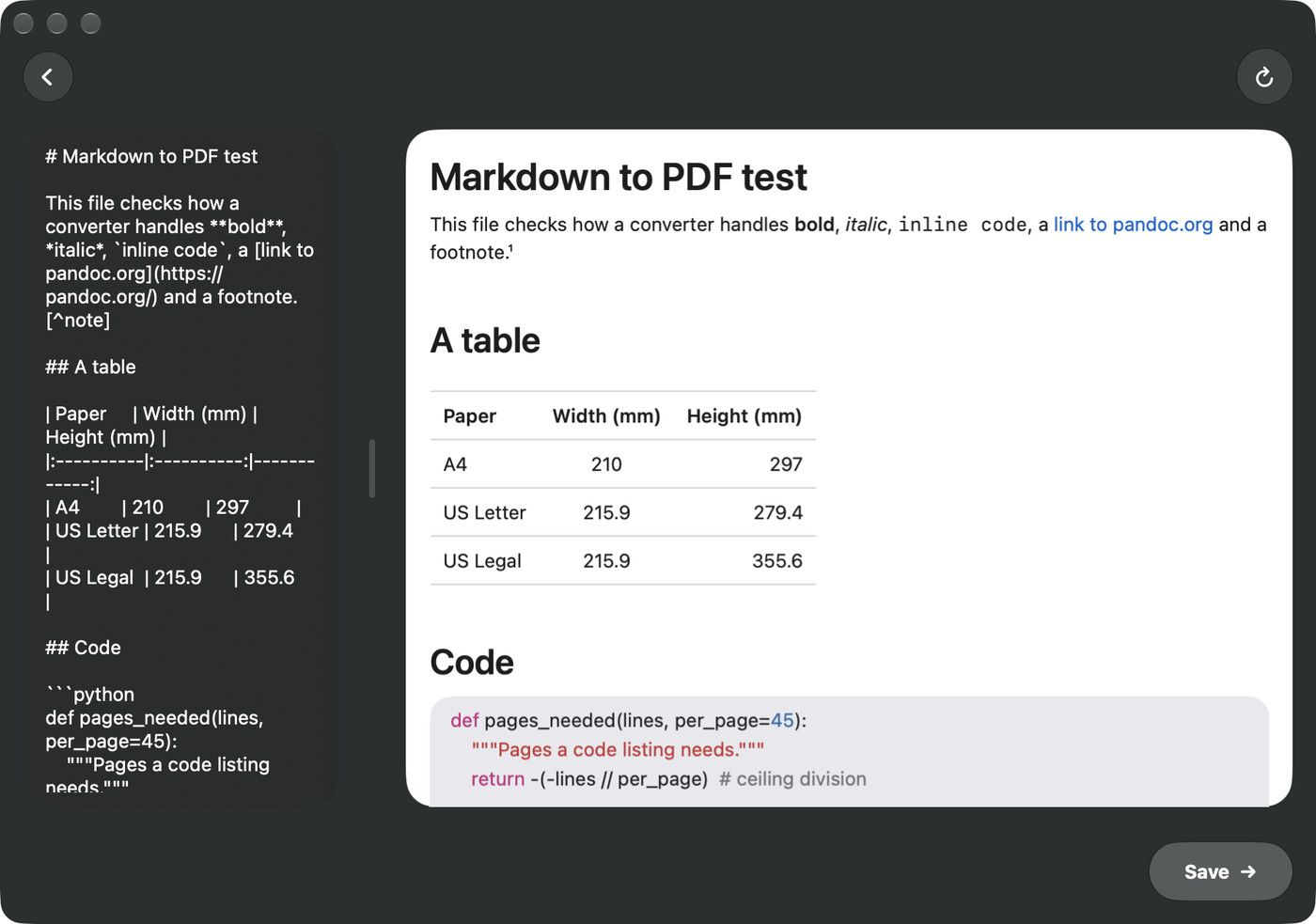
- Save the PDF. Click Save at the bottom right. The button shows Preparing… while the pages render, then the save dialog opens with the PDF named after your file.
The same app runs on iPhone and iPad (iOS 16 or later), where Save asks for a file name and then opens the share sheet.
What it does well:
- Code highlighting for Swift, JavaScript, TypeScript, Python, Ruby, JSON, HTML, XML, CSS and shell scripts. Code in other languages, such as Go, prints without colour.
- Tables keep their column alignment, and footnotes are gathered into a Footnotes section at the end.
- Mermaid diagrams render with a copy of Mermaid (version 10.9.6) built into the app, so they don’t need a connection.
- Page breaks fall between blocks, so a line of text, a table or an image is never cut in half.
- Web images (https links) are downloaded and placed in the PDF, as long as each one is on its own line with a blank line above and below it.
Where it falls short, as of version 1.6:
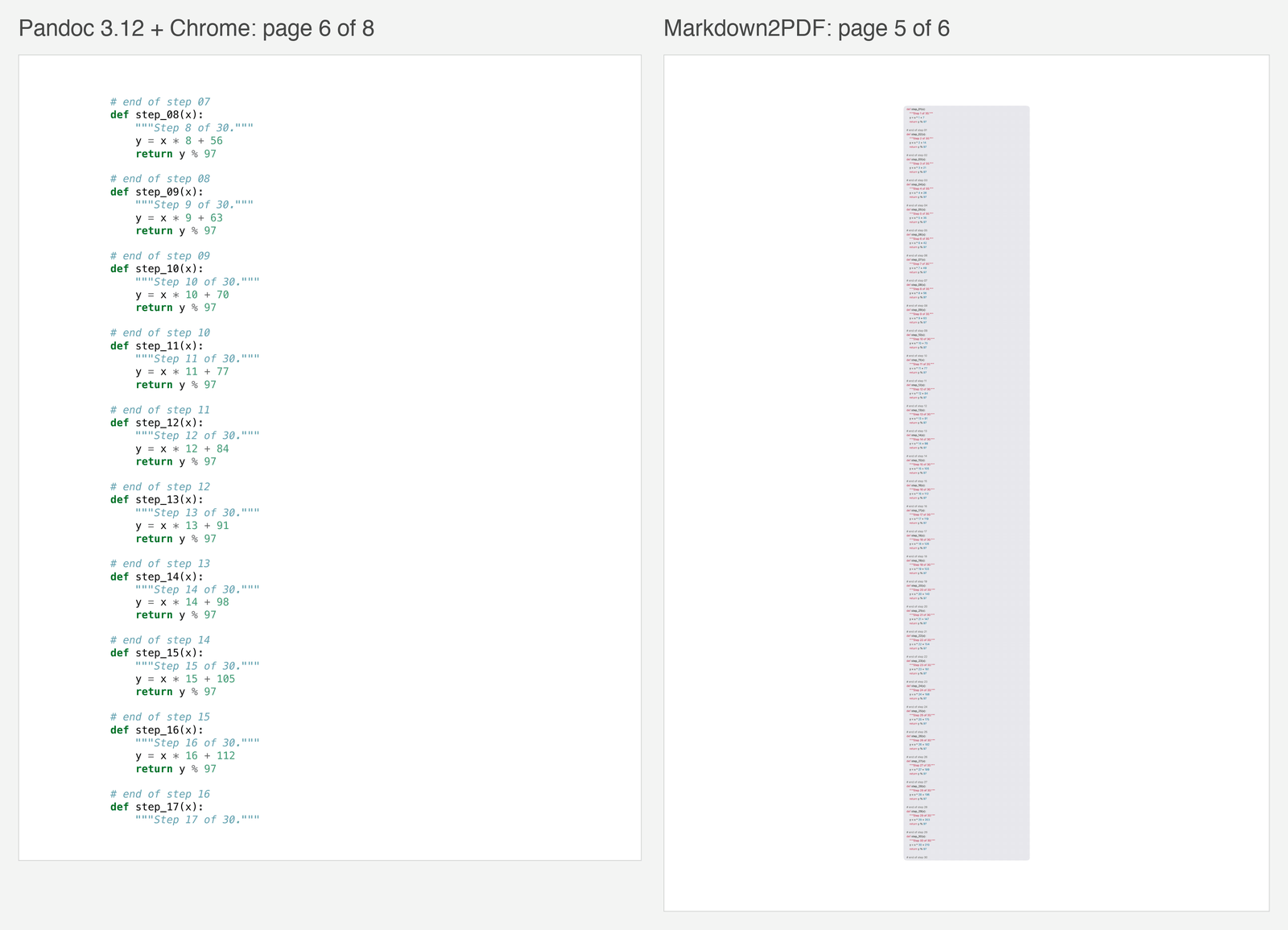
- The text isn’t selectable. Each page is a single picture, about 176 pixels per inch at normal size, so you can’t search or copy the text, and links don’t click. That’s sharp on screen but below the 300 DPI that Carleton University’s print shop asks for in anything that isn’t vector (our SVG vs PNG guide explains the difference). For real text, use one of the other routes.
- Long blocks shrink. A code block or table taller than a page is scaled down to fit one page: our 60-row table came out at less than half size and the 180-line listing at a quarter, too small to read, so split long listings. A heading can also end up alone at the bottom of a page or on a page of its own.
- Code blocks are set in a proportional font, so columns lined up with spaces drift.
- Images on disk don’t show. Only web images (https links) and images embedded in the file as base64
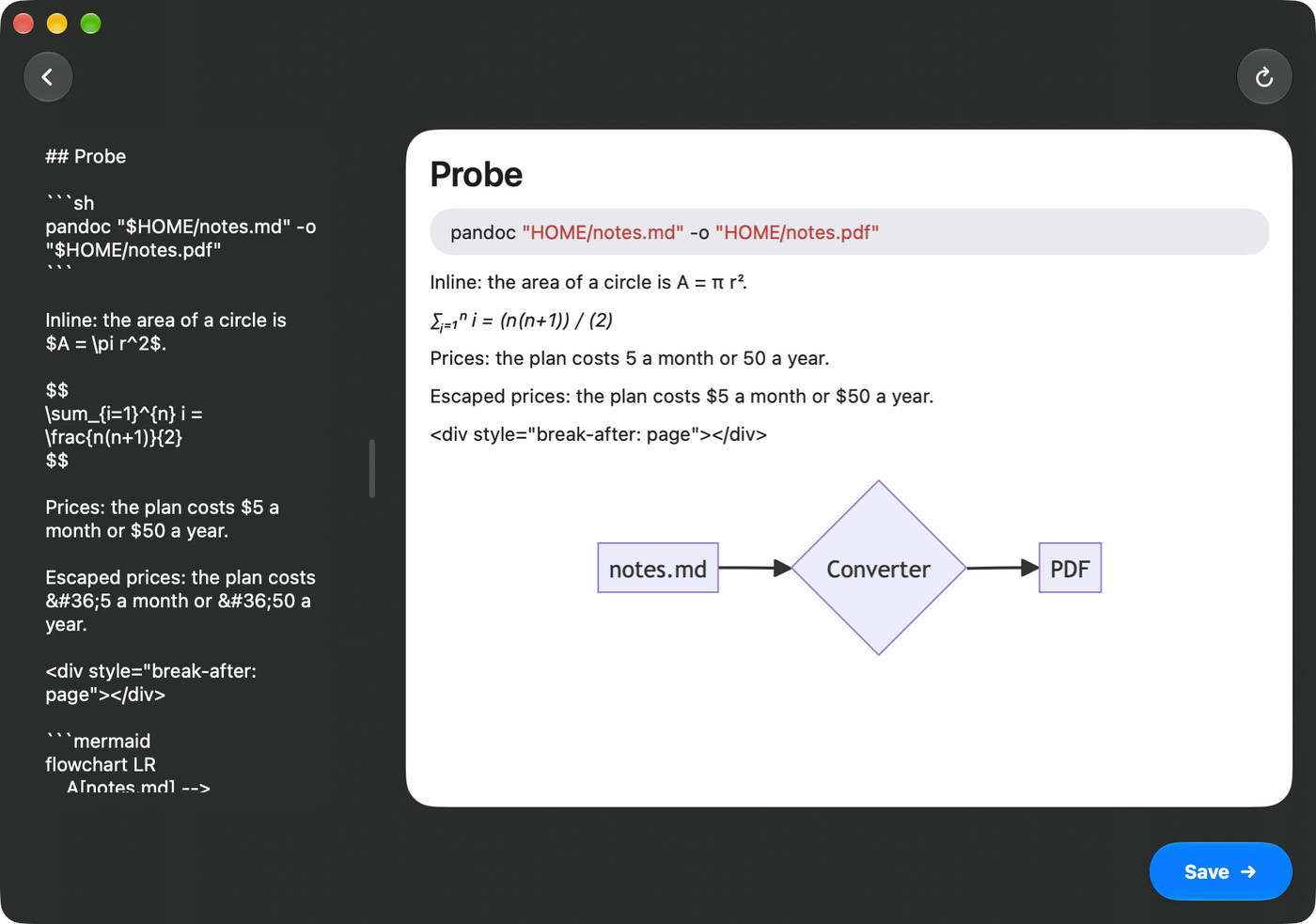
data:URIs appear. Our image linked by a relative path to a file on disk came out blank, and absolute paths andfile://links are blank too. - Maths is approximate.
$...$and$$...$$become Unicode characters. Greek letters, operators and simple superscripts and subscripts look right, but\frac{a}{b}prints as (a) / (b). - Dollar signs vanish in pairs. Any two dollar signs on one line count as maths, even inside a code block: “costs $5 or $50” loses both, and
"$HOME/notes.md" -o "$HOME/notes.pdf"became"HOME/notes.md" -o "HOME/notes.pdf". In ordinary text, write$for a literal dollar sign. - One fixed layout. A4 paper with 50-point (about 18 mm) margins, one theme, no page numbers and no way to force a page break: a page-break line in HTML prints as text.
Markdown to PDF: the three ways compared
In our test, the two routes that print through Chrome kept real text and typeset the maths properly, and Markdown2PDF was the only one with Mermaid built in rather than downloaded or added on.
| Pandoc 3.12 | VS Code + Markdown PDF 2.2.0 | Markdown2PDF 1.6 | |
|---|---|---|---|
| Setup | Pandoc, plus TeX (BasicTeX is 134 MB) or Chrome | VS Code and a free extension; Chrome or Edge, or a Chromium download | One app, macOS 13 or later |
| Selectable text and links | Yes | Yes | No, each page is an image |
| Paper | Letter, A4 or others | A4 by default, Letter in settings | A4 only |
| Tables longer than a page | Continue on the next page | Continue, header row repeated | Shrink to fit one page |
| Code highlighting | 194 languages | highlight.js | Swift, JS, TS, Python, Ruby, JSON, HTML, XML, CSS, shell |
| Mermaid | With the diagram filter and mermaid-cli 11 | Yes, loaded from a CDN | Yes, built in, offline |
| Maths | Typeset by LaTeX or MathML | Typeset by KaTeX, offline | Unicode approximation |
| Footnotes | Yes | Printed as typed | Collected at the end |
| Page breaks | \newpage or an HTML break-after line |
<div class="page"/> |
Automatic, between blocks only |
| Price | Free | Free | US$1.99, once |
Markdown to PDF questions
How do I convert Markdown to PDF for free on a Mac?
Use Pandoc or the Markdown PDF extension for VS Code; both are free. Pandoc also needs a PDF engine, such as a TeX system, or Chrome to print its HTML, while the extension only needs VS Code and a Chromium-based browser. If you already have an app that shows your Markdown rendered and can print, the Save as PDF option in the macOS Print dialog costs nothing extra.
Can I convert Markdown to PDF without LaTeX?
Yes. Have Pandoc write HTML (pandoc notes.md -s -o notes.html) and print it with Chrome in headless mode, or point Pandoc at WeasyPrint or Typst with --pdf-engine. Neither the VS Code extension nor Markdown2PDF uses LaTeX. In our test, Pandoc’s MathML and the extension’s KaTeX typeset equations properly without it.
How do I add a page break in Markdown?
Markdown itself has none, so it depends on the converter: \newpage for Pandoc’s LaTeX route, and <div style="break-after: page"></div> for routes that print through a browser, which worked in Pandoc with Chrome and in the VS Code extension (whose README also gives <div class="page"/>). Markdown2PDF only breaks pages automatically, between blocks. A --- line is a thematic break, drawn as a rule, not a new page. Leave a blank line above it: directly under a paragraph, it isn’t a rule, and it usually turns that paragraph into a heading.
Why does my Mermaid diagram show up as code in the PDF?
The converter isn’t running Mermaid. Pandoc needs the diagram filter and mermaid-cli (version 11, as of October 2026), the VS Code extension needs to reach its CDN, and Markdown2PDF prints the source when Mermaid can’t render a diagram. In every case the code block has to be marked mermaid as its language, on the opening line. Markdown2PDF is the strictest: the word has to come straight after the backticks, in lower case, with no space.
Why can’t I select the text in my PDF?
Because the converter saved each page as a picture rather than as text. Markdown2PDF does this by design, while Pandoc and the VS Code extension print real text that you can select, search and copy. If a PDF needs to be searchable, or its links clickable, use one of those two.
How do I convert Markdown to PDF in Terminal?
Install Pandoc with Homebrew (brew install pandoc), then either install BasicTeX and run pandoc notes.md -o notes.pdf, or skip TeX and use the two-step route through HTML and Chrome. The Pandoc section above has the options for paper size, margins and fonts.
How we tested this
We wrote one test file with headings, an aligned table, code in Python, shell and Go, a Mermaid flowchart, inline and display maths, a line of prices, a footnote, an HTML page-break line, a web image, a local image, a 60-row table and a 180-line code listing, and converted it on October 4, 2026, on a Mac running macOS 27:
- Pandoc 3.12 from Homebrew, to HTML printed by headless Chrome 154, then again with the pandoc-ext/diagram filter and mermaid-cli 12.0.0 (which failed) and 11.17.0 (which worked). We installed mermaid-cli in a project folder rather than globally and pointed it at the installed Chrome. We also ran
pandoc notes.md -o notes.pdf, which stopped without TeX, and checked Pandoc’s LaTeX output for tables, maths and page breaks. - Markdown PDF 2.2.0 in VS Code 1.121.0, in a separate VS Code profile. A small test script opened the file and ran the export command behind the Command Palette entry; the menu steps come from the extension’s README and VS Code’s documentation.
- Markdown2PDF: the app’s rendering engine, built from its source code (the code behind version 1.6) and run through the command-line tool it shares with the app. We also opened the file in version 1.6 from the Mac App Store to check the editor and preview. We couldn’t click its Save button from our test setup, so the Save steps come from the app’s code.
We didn’t install TeX, WeasyPrint or Typst, so the LaTeX options, the BasicTeX and tlmgr commands and the WeasyPrint and Typst engines are quoted from Pandoc’s manual and install guide and from Homebrew. We checked the PDFs with poppler’s pdfinfo, pdffonts, pdfimages and pdftotext and with Apple’s PDFKit. The page images here are crops of those PDFs; the two editor screenshots are captures of the App Store version’s window, and the start-window picture is the app image from our Markdown2PDF page. Versions, sizes and prices were checked on October 4, 2026. The photo is from Wikimedia Commons.
References
- Pandoc. Pandoc User’s Guide.
- Pandoc. Installing pandoc.
- Pandoc on GitHub. Release 3.12. September 29, 2026.
- TeX Users Group. More Packages: BasicTeX.
- Homebrew. basictex, weasyprint and typst.
- pandoc-ext. Diagram Generator, a Lua filter for pandoc.
- Mermaid. About Mermaid, mermaid-cli and the mermaid-cli 12.0.0 release notes.
- Chrome for Developers. Chrome Headless command-line reference.
- Chrome for Developers. Chrome Headless mode.
- CommonMark. CommonMark Spec, version 0.31.2.
- LaTeX2e unofficial reference manual. \newpage.
- CTAN. longtable.
- MDN Web Docs. break-after and @page.
- yzane. Markdown PDF on GitHub and on the Visual Studio Marketplace.
- Visual Studio Code. User interface: Command Palette.
- Apple Support. Save a document as a PDF on Mac.
- Apple Support. Choose an app to open a file on Mac.
- Carleton University, The Print Shop. Best practices for print files.
- Daring Fireball. Markdown.
Image credits
- Metal movable type · Photo: Willi Heidelbach, CC BY 2.5 (Resized)