 Haplo
Haplo
How to Block Apps on iPhone
Every way to block apps on an iPhone running iOS 27, with the steps from Apple's own guides, plus an app blocker built on the same Screen Time frameworks. For each one, the honest part too: how easily you could get around it.
There are several ways to block apps on an iPhone, and the difference that matters most is how easy each one is to get around. We make Barrier, an app that blocks the apps you choose on a schedule, and it’s one of the ways below.
In iOS 27, Screen Time is built around Screen Time Schedules and Time Allowances, which take the place of the Downtime and App Limits in iOS 26. Below is every method, with the steps from Apple’s iPhone User Guide for iOS 27 and where each one leaks. Not on iOS 27 yet? Our iPhone Screen Time guide also covers Downtime and App Limits.
Every way to block apps on iPhone, compared
| Method | What it blocks | How you’d get around it |
|---|---|---|
| Screen Time Schedule | Categories of apps outside the time windows that allow them | Turn off Schedule in Settings, unless there’s a Screen Time passcode |
| Time Allowances | Categories of apps once their daily time is used up | Delete the category in Settings, unless there’s a passcode |
| Content & Privacy Restrictions | Built-in apps and features, such as Camera and AirDrop | Switch it back in Settings, unless there’s a passcode |
| Screen Time passcode | Changes to the three settings above | Know the four digits, or reset them |
| Focus | Nothing: it filters notifications and Home Screen pages | Open the app from App Library |
| Lock or hide an app | Anyone who isn’t you | Your own Face ID |
| App blocker, such as Barrier | The apps, categories and websites you pick, on your schedule | The blocker’s own unlock, or deleting the blocker |
| Deleting the app | Everything | Download it again |
Screen Time is the strongest tool built into the iPhone, but only with a passcode you don’t know. Focus doesn’t block anything. An app blocker lets you pick single apps and your own hours, and has exits of its own.
How to block apps with Screen Time
Apple’s page on deleting apps says that to block an app to prevent its use, you can use Screen Time settings. Turn it on first: go to Settings, tap Screen Time, tap Manage Screen Time, then tap Turn On App & Website Activity. Schedules and Time Allowances need iOS 27 or later on all your Apple devices.
How to set a Screen Time Schedule
A schedule decides when you can use your apps. You split the day into time windows, such as work, dinner and evening, and each window shows which Time Allowance categories it allows (Apple).
- Go to Settings, tap Screen Time, tap Screen Time Schedule, then turn on Schedule.
- Tap Add Schedule, choose the days, then confirm.
- Tap a time window to rename it, change its start or end time, or choose which categories it allows.
How to set Time Allowances
Time Allowances decide how long. There’s a daily total for the device and an allowance for each category, such as Entertainment, Games and Social Media, and an app works until it reaches its category’s allowance or the daily total.
- Go to Settings, tap Screen Time, then tap Time Allowances.
- Drag the slider, or tap the minus or plus button, to set the daily total.
- Tap a category under Time Allowances and set its time. To add one, tap Manage Categories, then the add button.
- To apply allowances only in certain windows of your schedule, turn on Match Screen Time Schedule.
Apps and contacts under Always Allowed (in Settings, then Screen Time) work whatever your schedule and allowances say. Apple suggests adding family members or the Health app for emergencies.
Where Screen Time leaks
- It limits categories, not single apps. Apple’s iOS 27 guide describes allowances by category and no way to limit one app on its own, which iOS 26’s App Limits could do. Categories come from developers: Entertainment or Games from the App Store categories they pick, and Social Media if they declare social features, such as a feed that visibly spreads posts to many people (Apple Developer). The app you want gone can share a category with one you need.
- Without a passcode, it’s two taps from off. Tap Screen Time Schedule, then turn off Schedule.
- Apple doesn’t say what the limit screen offers. For iOS 26, Apple says, “By default, Screen Time limits can be ignored once reached” (Apple). Its iOS 27 pages for your own iPhone don’t say what appears when you hit an allowance, or whether you can dismiss it. We won’t guess. Set the passcode either way.
How to block built-in apps with Content & Privacy Restrictions
These switch things off outright. For your own iPhone, Apple’s iOS 27 guide covers built-in apps and features and explicit content, not apps you downloaded (Apple).
- Built-in apps and features: go to Settings, tap Screen Time, tap Content & Privacy Restrictions, tap Other Features, then block the ones you want, such as AirDrop or Camera.
- Explicit content: on the same screen, set the options under Content Restrictions, such as Books, Movies, TV Shows and Music.
In iOS 26, the same screen could also hide built-in apps and block websites. Without a passcode, all of it switches back in Settings.
How to set a Screen Time passcode
A Screen Time passcode is four digits, separate from the passcode that unlocks your phone, that must be entered before the Screen Time settings you chose can change (Apple). It’s what makes everything above stick.
- Go to Settings, tap Screen Time, tap Manage Screen Time, then tap Lock Screen Time Settings.
- Enter a four-digit passcode, then enter it again to verify it.
You can then set up Screen Time Passcode Recovery, so a forgotten code can be reset with an Apple Account. To change or remove the code, go to Settings, tap Screen Time, then tap Change Screen Time Passcode.
The weak spot is who knows the code. If you choose it, the block holds only until you feel like typing it, so ask someone you trust to type a code you don’t see. Recovery matters too: a reset needs the Apple Account entered when the passcode was set up, which Apple notes might not be the one signed in on the phone. If that’s your account, you can reset the code whenever you like. If it’s your code keeper’s, a reset goes through them.
Does Focus block apps?
No. A Focus decides which notifications reach you, not which apps open. In Apple’s iOS 27 guide, a Focus can silence notifications or allow only certain people and apps, switch to a custom Home Screen page, turn on by itself at a set time or place, and filter what apps show, such as which mail account. None of that stops an app opening, and App Library is always available, with your apps and a search field at the top.
A Focus is still worth pairing with a block, because it cuts the pings that pull you back. Go to Settings, tap Focus, tap a Focus such as Work, then tap Apps to choose which apps can still notify you, and tap Add Schedule to have it turn on by itself.
How to lock or hide an app with Face ID
Apple built this for a different job: letting someone use your phone without getting into certain apps (Apple).
- On the Home Screen, touch and hold the app.
- Tap Require Face ID (or Touch ID or Passcode).
- Tap Require Face ID again to lock it, or tap Hide and Require Face ID, authenticate, then tap Hide App.
A locked app asks for Face ID each time you open it and locks again when you quit it. A hidden app moves to a Hidden folder at the bottom of App Library. Against your own habits, it’s a one-glance speed bump: your face opens it.
How to block apps with an app blocker
App blockers use the same machinery as Screen Time. Apple’s Screen Time frameworks let an app you authorize with Face ID or Touch ID restrict apps and run schedules in the background. You choose the apps in Apple’s own picker, which gives the blocker opaque tokens rather than a list of your choices. What a blocker adds is rules Settings doesn’t offer: single apps, your own hours and its own way of unlocking. Barrier works this way, and the steps below come from its current code.
How to block apps with Barrier
- Open Barrier, tap Grant Permissions, and approve Screen Time access.
- Tap Pick Apps and choose apps, whole categories or websites.
- Choose “Block until I unblock” to keep them locked around the clock, or “Set custom schedule” to choose days and hours.
- Set how long an unlock lasts: 10 minutes to start, adjustable in 5-minute steps.
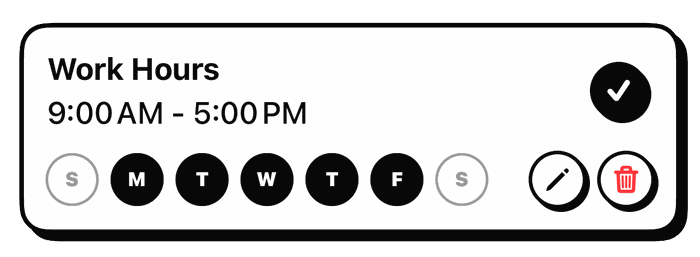
Afterwards, Blocking Schedules in the Settings tab offers three presets: Always Blocked, Work Hours Only (9 a.m. to 5 p.m. on weekdays) and Outside Work Hours (weekday evenings from 5 p.m. to 9 a.m., plus weekends). Or add your own with a name, start and end times, and days; an end time earlier than the start runs overnight. A preset replaces your existing schedules, so choose a preset first and add custom ones after.
What happens when you need a blocked app
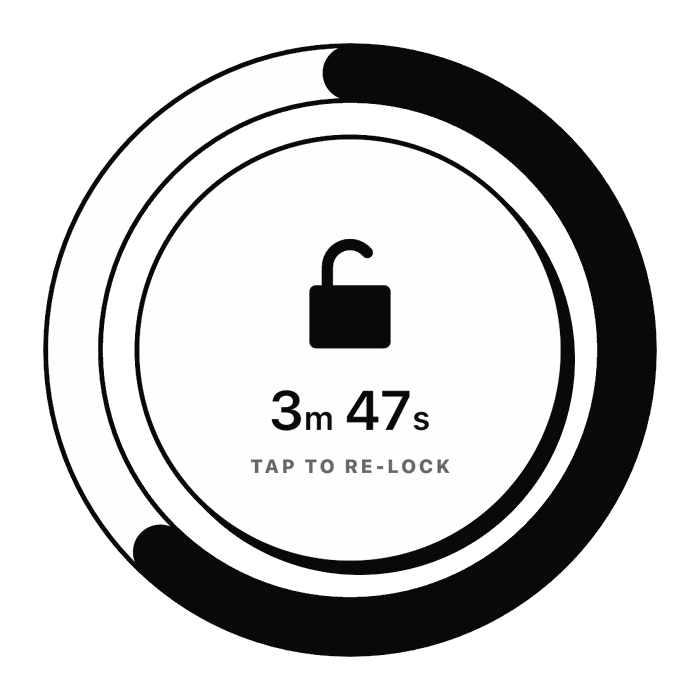
A blocked app shows a Blocked by Barrier screen with an encouraging line and one button, and nothing on it unlocks the app. To get in, open Barrier and tap the lock. For your first four unlocks, a 30-second countdown runs, and Cancel keeps everything locked; after that, a video ad takes its place. Your apps then unlock for the length you set, a Live Activity counts down on your Lock Screen, and they lock again by themselves, even with Barrier closed. Tap the lock to re-lock early.
Where Barrier leaks
- One unlock opens everything. An unlock lifts every block at once, not just the app you meant to check. Keep unlocks short.
- After four unlocks, an ad. Your first four unlocks, ever rather than per day, cost the 30-second wait. From the fifth, after a one-time heads-up, a rewarded video ad plays before each unlock, which is how Barrier stays free. If an ad doesn’t load within about five seconds, you get the 30-second wait instead.
- Once you’re in, you can change everything. While your apps are locked, Barrier won’t let you edit the app list or your schedules. During an unlock you can do both, including deleting a schedule. You can shorten the unlock length any time, but lengthen it only while unlocked.
- Outside your schedules, nothing is blocked. A gap in the schedule is a gap in the block.
- You can delete it. When you authorize a Screen Time app for yourself, Apple lifts the restrictions that would stop you deleting it. A blocker you set up for yourself is a commitment you can walk back, just more slowly.
For more friction, the optional Goblin Mode roasts you before each unlock and can make you watch several ads.
Which kind of block works best?
Studies of screen-time tools point one way: a block you can wave away behaves like a reminder, and friction you can’t skip does more.
- Limits you can’t override on the spot. In an experiment with about 2,000 US adults on Android phones, economists Hunt Allcott, Matthew Gentzkow and Lena Song offered some of them a limit tool whose limits “in most cases could not be immediately overridden, unlike the flexible limits in existing tools such as Android’s Digital Wellbeing and iOS’s Screen Time.” Use of six tempting apps, including Facebook, Instagram and YouTube, fell by 22 minutes a day (16 percent) over 12 weeks (NBER working paper, published in the American Economic Review in 2022).
- Lockouts against warnings. In GoalKeeper, a four-week study with 36 people, everyone had a baseline week, then a week with each of three versions of an app that stepped in once they passed their own daily goal: one warned them, one locked the phone for growing spells, and one locked it until midnight (Kim and colleagues, 2019). The warnings were frequently ignored (92 percent). Weekday use fell by 32.1 minutes a day with warnings, which wasn’t statistically significant, 50.4 with the growing locks and 73.7 with the all-day lock. But the all-day lock caused the most negative emotion, and 20 of the 36 raised their goals while on it.
- A pause with a way out. In a 2023 PNAS study, 280 people spent six weeks with an app that made them wait through a short breathing exercise, with an option to back out, before their chosen apps opened. About 36 percent of the time, people backed out, and after six weeks, actual openings were down 57 percent (Grüning and colleagues). The authors note that the six-week study had no control group, and one of them created the app.
None of these tested Barrier or Screen Time, and the samples are small or specific. The practical lesson: put a real step between you and the app, keep an easy way to back out, and don’t make the lock so harsh that you end up loosening it.
A blocking setup to copy
This is our suggestion, not a protocol from a study. Check a week of your own Screen Time numbers first, and set any cap 10 to 20 percent below your usual, the starting guideline GoalKeeper gave its participants.
| When | What’s blocked | In Screen Time (iOS 27) | In Barrier |
|---|---|---|---|
| Weekdays, 9 a.m. to 5 p.m. | Social Media and Entertainment apps | A Work window that allows neither category | The Work Hours Only preset |
| Every night, 10:30 p.m. to 7 a.m. | The same apps | A Night window that allows no categories | A custom schedule from 10:30 PM to 7:00 AM, every day |
| Evenings | Nothing, but with a cap | A Social Media allowance 10 to 20 percent below your usual | No schedule, so the apps are open |
| All the time | Nothing essential: keep Phone, Messages, Maps, banking and authenticator apps open | Always Allowed | Leave them out of your picks |
| Once | The settings themselves | Someone you trust types the Screen Time passcode | Keep unlocks at 10 minutes |
Pair either version with a Work Focus that lets only your work apps notify you. For a step-by-step plan, see how to stop doomscrolling in 14 days. For exam season, there’s a study mode for your phone.
Blocking apps on iPhone: FAQ
How do you block one specific app?
Apple’s iOS 27 parental controls can block specific apps on a child’s device, but its guide for your own iPhone limits apps by category. To block one app on your own phone, pick it in an app blocker, or delete it for a while and download it again later.
Can you get around a Screen Time block?
Without a Screen Time passcode, yes: the schedule is a switch in Settings. With one, only someone who knows the code, or can reset it with the recovery Apple Account, can change your settings.
How we made this
We read Apple’s iPhone User Guide pages for iOS 27 and iOS 26, plus Apple’s support articles and developer documentation, in September 2026. Where Apple’s iOS 27 pages don’t describe something, we say so rather than guess. The Barrier details come from the app’s current source code, and the study figures from the studies’ full texts. The photo is from Wikimedia Commons.
References
- Apple iPhone User Guide, iOS 27. Set Screen Time Schedules and Time Allowances; Set up Screen Time for yourself; Block features or content with Screen Time; Create, change, or remove a Screen Time passcode; Set up a Focus; Find and use your apps in App Library; Lock or hide an app; Remove or delete apps.
- Apple iPhone User Guide, iOS 26. Set schedules with Screen Time; Block apps, app downloads, websites, and purchases.
- Apple Support. Change your Screen Time passcode on an iPhone or iPad; Use Screen Time to manage your child’s iPhone or iPad.
- Apple Developer. Introducing Time Allowances; Screen Time Technology Frameworks; requestAuthorization(for:); FamilyActivityPicker.
- Allcott H, Gentzkow M, Song L. Digital Addiction. American Economic Review. 2022;112(7):2424-2463. NBER Working Paper 28936.
- Kim J, Jung H, Ko M, Lee U. GoalKeeper: Exploring Interaction Lockout Mechanisms for Regulating Smartphone Use. Proceedings of the ACM on Interactive, Mobile, Wearable and Ubiquitous Technologies. 2019;3(1):16.
- Grüning DJ, Riedel F, Lorenz-Spreen P. Directing smartphone use through the self-nudge app one sec. Proceedings of the National Academy of Sciences. 2023;120(8):e2213114120.
Image credits
- Rusty padlock securing an old metal gate · Photo: Shixart1985, CC BY 2.0 (Resized)