 Haplo
Haplo
How to Make a Logo for Free
We build one logo, a sailboat for a made-up sailing school, from an empty grid to finished PNG and SVG files in EasyLogo's free web editor. Then: what free should mean, and what to check before the logo goes on anything.
You can make a logo for free in a browser tab, with no account and no watermark, and come away with a PNG and an SVG. We make EasyLogo, a logo maker that snaps lines and circles to a grid of dots, and its free web editor is the route this guide follows, from an empty grid to finished files.
To show every step, we made one logo from start to finish: a sailboat for a made-up sailing school, drawn in the web editor and saved with its own download buttons. We also cover what a free logo maker should give you, the trademark checks to run before you use a logo, and when EasyLogo’s paid iOS app is worth it.
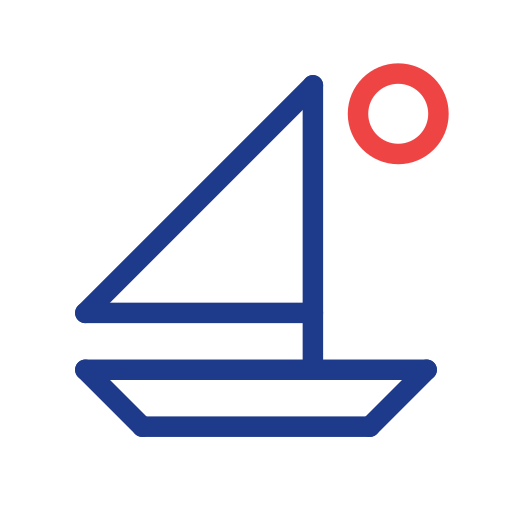
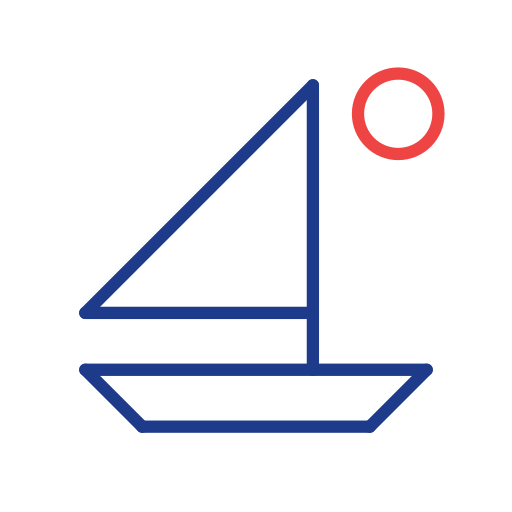
That’s where we end up: two drags and one circle, in navy with a red sun.
What a free logo maker should give you
Before you spend an hour on a design, check that the tool gives you these four things without paying:
- No watermark. The download should show your logo and nothing else. EasyLogo’s web editor draws only your shapes onto a white square.
- A PNG big enough to use. The editor’s is 1024 by 1024 pixels.
- An SVG. A vector file describes shapes rather than pixels, so it “can be rendered cleanly at any size”, in the words of MDN’s SVG guide: one file for a business card and a banner.
- The file, with no strings. No account, and nothing in the file pointing back to the tool. The editor builds both files in your browser, with no upload step. Our finished SVG is 1,421 bytes of plain text: a white rectangle, seven lines and a circle.
Free doesn’t mean clear to use, though; the checks near the end cover that.
How to make a logo for free, step by step
The web editor runs in a browser on a computer or a phone, with touch or a mouse, and there’s nothing to install.
1. Settle on one idea
Write down what the business does, one image that belongs to it, and where the logo will be seen most. Ours: a sailing school for beginners, a small sailboat, a booking website and a sign on the dock. Our guide to designing a minimalist logo covers choosing the image.
2. Open the editor and pick a grid
Go to haploapp.com/logo-maker; there’s no sign-up screen. The Grid Size panel has Columns and Rows steppers, each running from 2 to 12, and a new editor starts at 5 by 5.
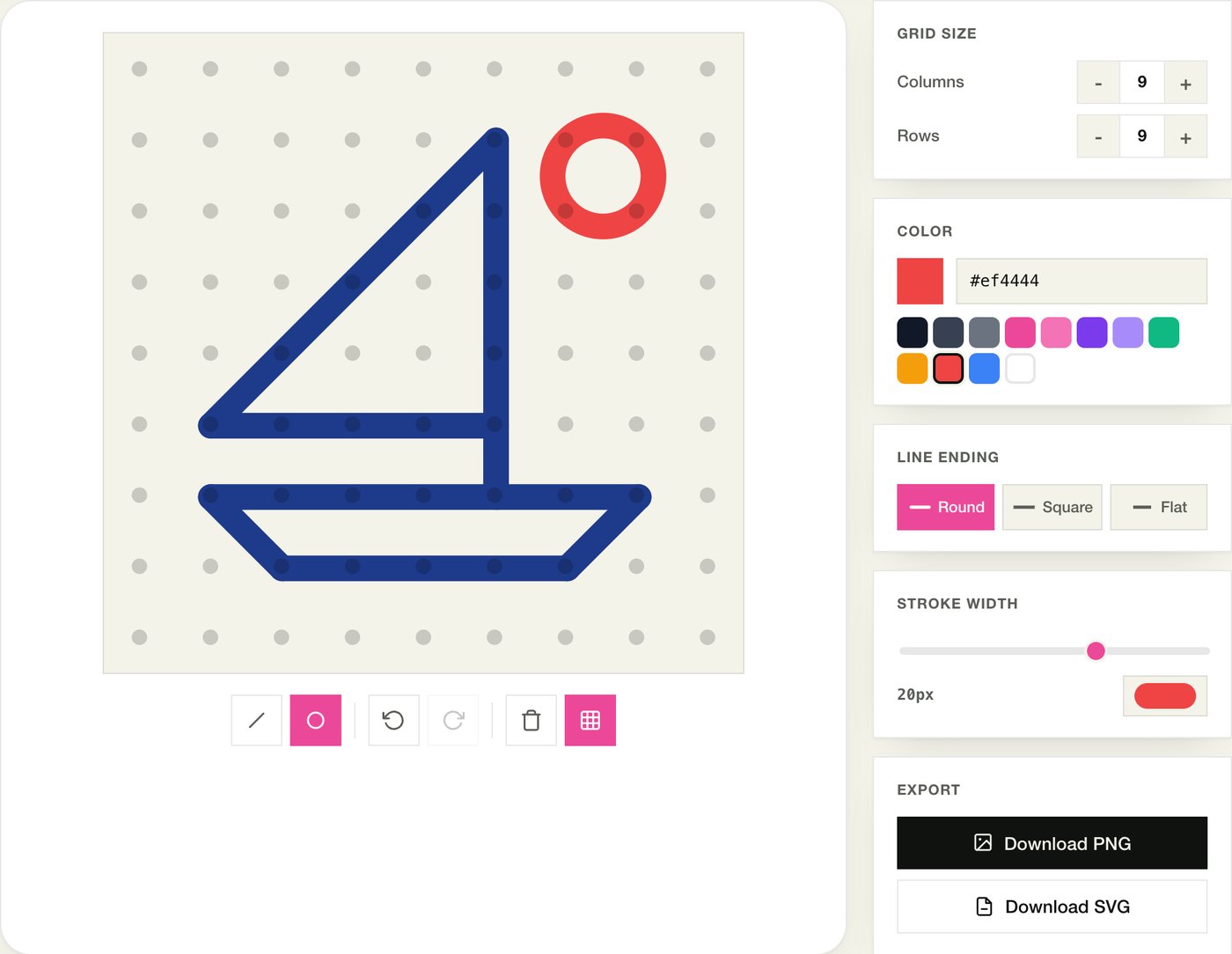
- Pick the grid first. Once you’ve drawn, changing it asks “Changing grid size will clear your design. Continue?”, and continuing wipes the canvas.
- Keep columns and rows equal. The canvas is always square, so a 7 by 4 grid has tall, narrow cells and diagonals that aren’t 45 degrees.
- Match the grid to the detail you need. Fewer dots make bolder, simpler marks. The outermost dots sit half a cell from the edge, so leaving that ring empty gives the logo a margin.
We pressed + four times on each stepper for a 9 by 9 grid: a 7 by 7 area to draw in, with an empty ring of dots around it.
3. Draw the lines
The line tool is on when the editor opens (its keyboard shortcut is L). Press on a dot, drag to another and let go, and a straight line snaps between their centres. Keep dragging through more dots before you let go and each one adds a segment, so a single drag can draw a whole outline.
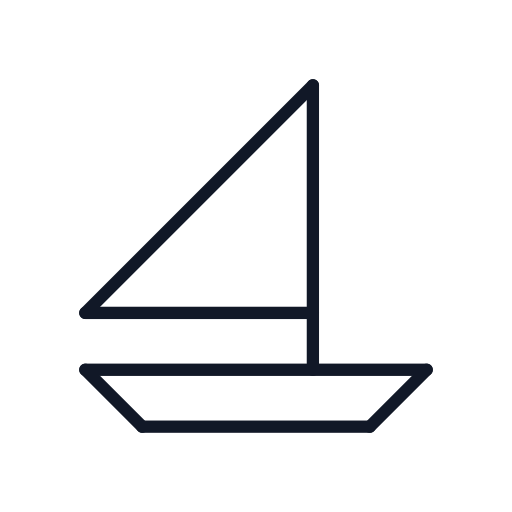
Our boat took two drags, plus one circle in the next step. Rows count from the top and columns from the left, starting at 1:
| Drag | Tool | Dots in order (row, column) | What it draws |
|---|---|---|---|
| 1 | Line | 7,6 → 2,6 → 6,2 → 6,6 | The mast, the sail’s long edge and the boom |
| 2 | Line | 7,2 → 7,8 → 8,7 → 8,3 → 7,2 | The hull, closed where it started |
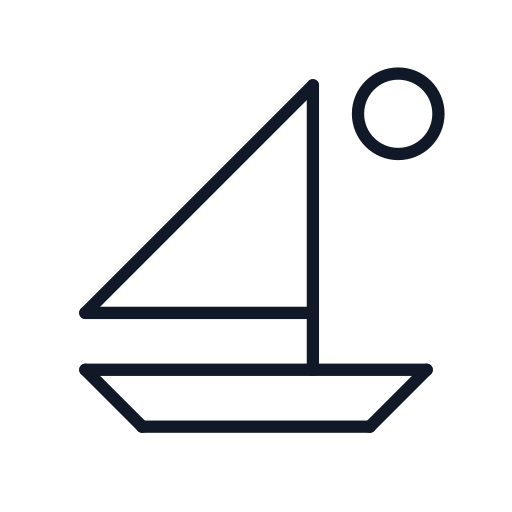
| 3 | Circle | 2,7 → 3,8 | The sun |
A drag picks up any dot the pointer passes within 45 percent of the dot spacing, so a slow, wobbly diagonal can catch one you didn’t mean. If it does, undo with Ctrl+Z (Cmd+Z on a Mac) and redraw it in one quick, straight movement.
4. Add circles
Switch to the circle tool: the ring icon under the canvas, or press C. Press on one dot, drag to another and let go. Those two dots become opposite ends of the circle’s diameter, with the centre halfway between them. Two neighbouring dots make the smallest circle; two diagonal neighbours make a slightly bigger one, centred between four dots. Our sun runs from row 2, column 7 to row 3, column 8.
Circles come out as rings: the web editor has no fill, and no curves other than full circles, so plan around straight lines and rings.
5. Choose your colours
The Color panel has 12 swatches, a colour picker and a hex field: type a six-digit code and press Enter (the # is optional). The colour showing there applies to the next shape you draw.
To recolour a shape you’ve drawn, click its line between two dots, away from any dot. The panel title changes to “Color (selected)”, and the colour you pick now changes that whole drag. Click the × on the strip that appears, or an empty part of the canvas, to deselect.
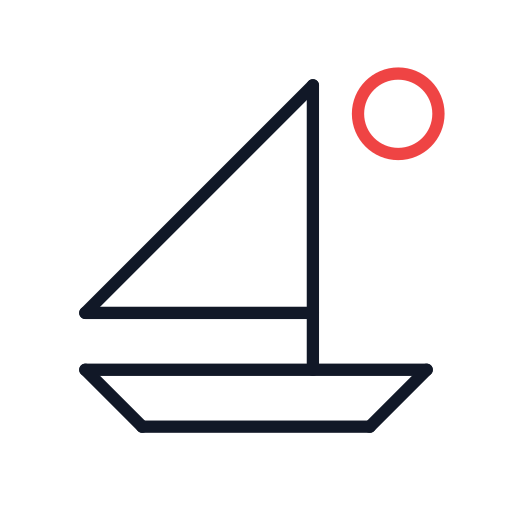
We tried three colourways. Blue, ink and amber pulls the eye three ways, and the amber looks pale on white. Navy with a red sun keeps the boat in one dark colour, so it still works printed in one colour, and gives the accent to the smallest shape. We typed the navy as #1e3a8a; the red is the palette’s #ef4444.

6. Set the stroke width and line ends
The Stroke Width slider runs from 2 to 30 pixels and starts at 12. Line Ending offers Round (the default), Square and Flat. Like colour, both apply to the next shape you draw, or to the one you’ve selected.
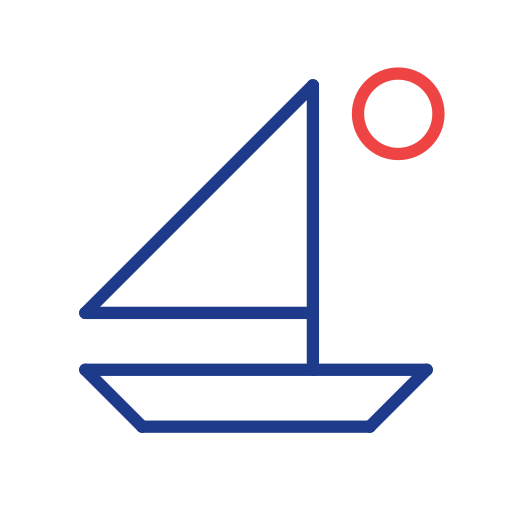
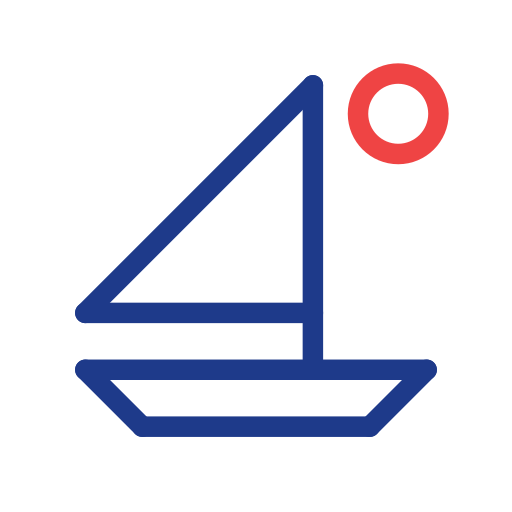
On a desktop the canvas is 500 pixels wide, so the default 12 px line is 2.4 percent of the logo’s width. Shrink the logo to 32 pixels and that line is 0.77 of a pixel wide, which a screen can only show as a pale smear. At 20 px it’s 4 percent, or 1.28 pixels at 32, enough to stay solid, so we selected each drag and moved the slider to 20. (On a phone’s narrower canvas the same number draws a heavier line; the exports keep the proportions you see.)
Every segment is a separate line, so the line ends also shape the corners. Round gives rounded corners, Square gives crisp right angles but pokes out at sharp ones, and Flat leaves a notch at each corner. We kept Round. The minimalist logo guide compares all three on one mark.
7. Test it small
Logos spend much of their life small, in browser tabs and profile pictures. Shrink the PNG to 32 and 16 pixels in any image editor and look at it at actual size. Here’s ours.
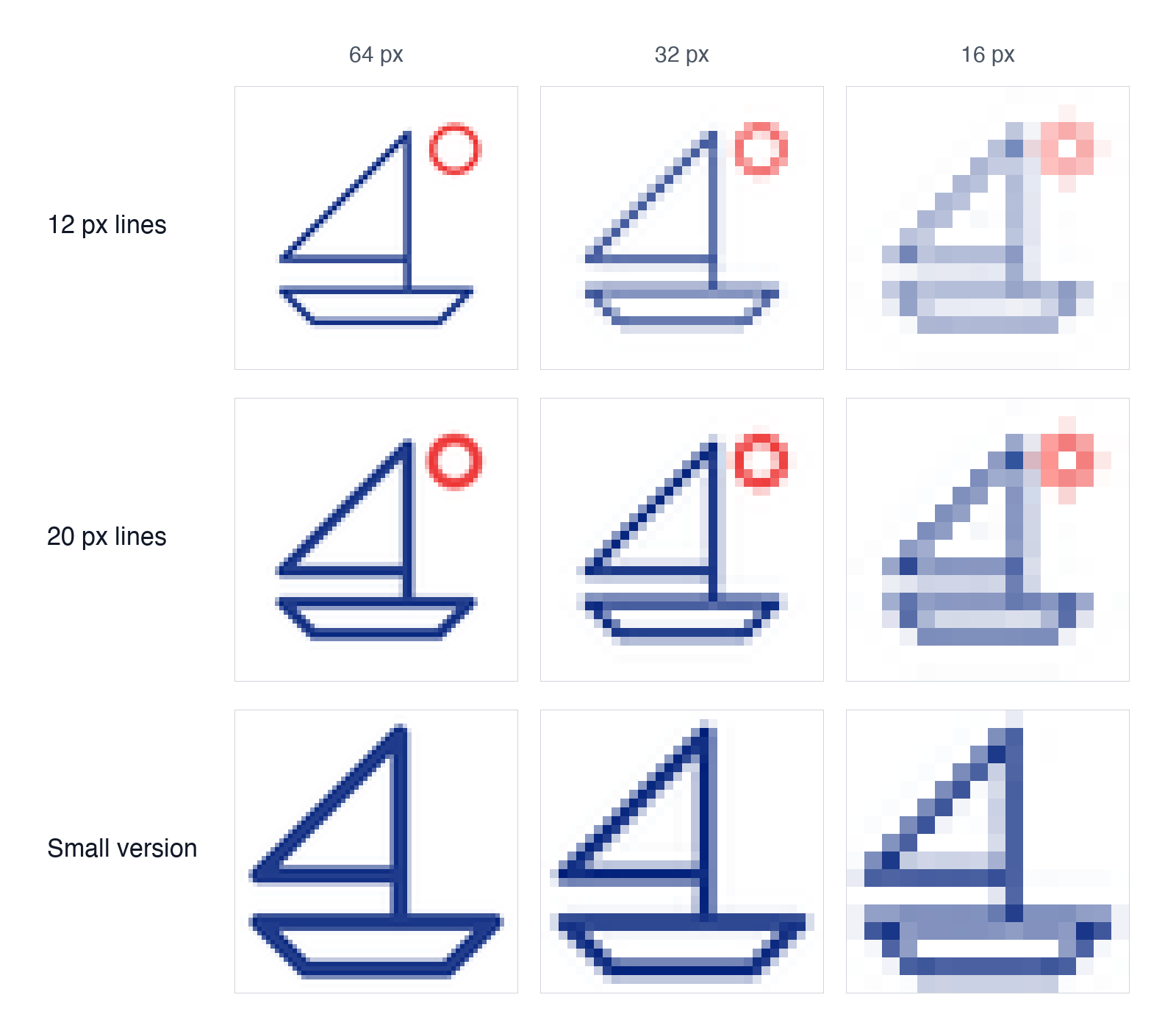
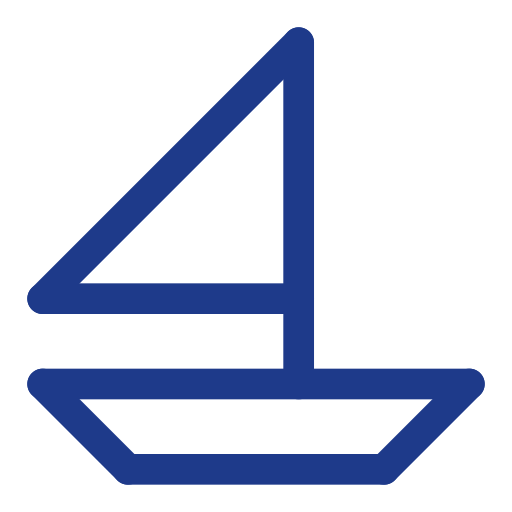
At 32 pixels the 20 px version holds its shape where the 12 px one fades. At 16, neither works: the hull’s two lines merge and the sun turns into a pink smudge. The fix for tiny sizes is a second, simpler drawing rather than a smaller copy. Ours is the same boat on a 6 by 6 grid with 30 px lines, the slider’s maximum, and no sun: drag 5,4 → 1,4 → 4,1 → 4,4 for the sail, then 5,1 → 5,6 → 6,5 → 6,2 → 5,1 for the hull. It still reads as a boat at 16 pixels. Our logo sizes cheat sheet lists where each size is needed.
8. Export the PNG and the SVG
The Export panel has two buttons. Download PNG saves a 1024 by 1024 pixel image; Download SVG saves a vector file drawn on a 512 by 512 square. Both come on a white background. Our finished PNG was 39.5 KB and the SVG 1.4 KB. They arrive named “easylogo-” plus a long number, so rename them.
Download both before you close the tab. The web editor doesn’t save your work anywhere: reload the page and you’re back to an empty 5 by 5 grid.
Keep the SVG as the master copy: MDN’s image format guide recommends SVG for images that must be drawn accurately at different sizes. Our guide to SVG vs PNG for logos covers which file to use where.
Because an SVG is plain text, two quick edits in any text editor give you more versions for free:
- A transparent background. Delete
<rect width="512" height="512" fill="#ffffff"/>, the first element inside the<svg>tag. - A light version for dark backgrounds. Find and replace the main colour. We swapped
#1e3a8afor#ffffff.
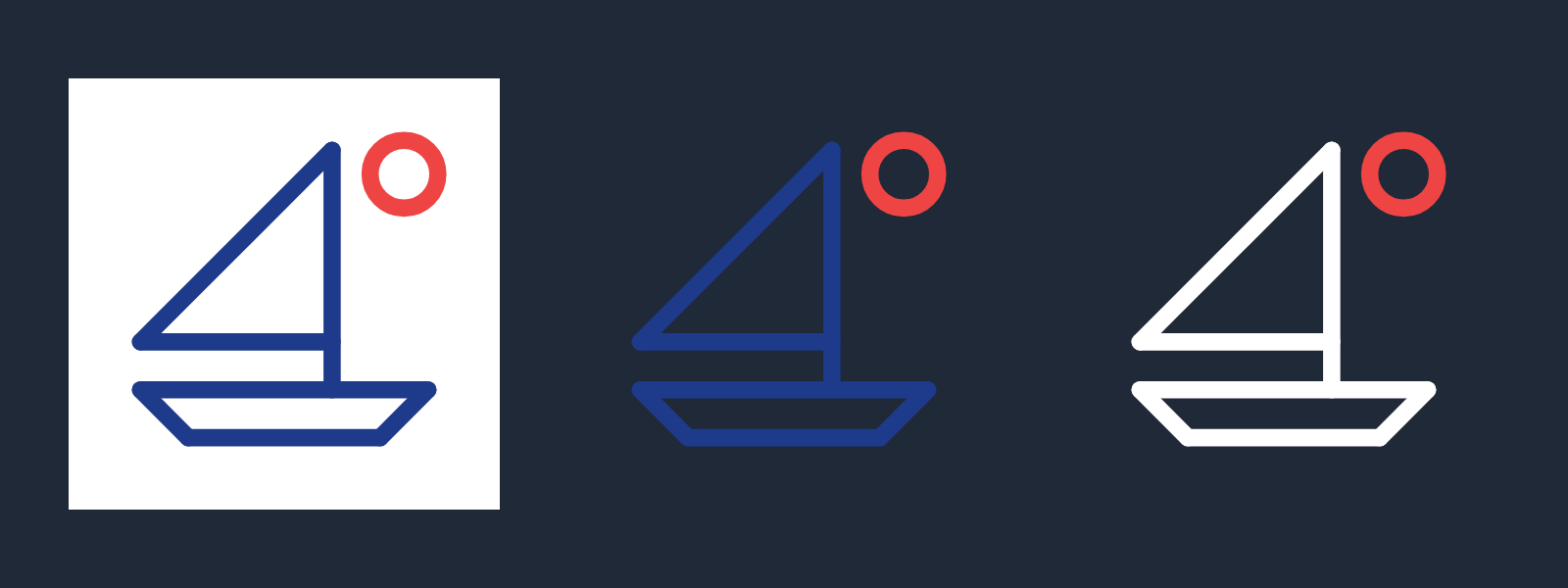
The PNG always keeps its white background. A transparent PNG is one of the things the app adds.
Check your logo before you use it
A logo you drew yourself can still clash with someone else’s, and a few free searches catch the obvious problems. This is general information, not legal advice.
What counts as a conflict
In the US the test is likelihood of confusion: if your trademark is confusingly similar to another and the goods or services are related, people may assume they come from the same source. The USPTO calls it “the most common reason for refusing registration”. The marks don’t have to match. Similarity “in sound, appearance, or meaning”, or a “similar commercial impression”, is enough, and two logos can conflict when they share the same dominant design element, even if only one of them has words.
Registration isn’t what creates rights, either. According to the USPTO, you become a trademark owner as soon as you start using a trademark with your goods or services, though those rights only cover the area where you trade. A sailing school two towns over, with a similar boat and no registration, can still matter.
How to search for a logo like yours
- Find the design codes. The USPTO files the pictures in trademarks by design search code, a six-digit number made of a category, a division and a section, listed in its Design Search Code Manual. Our boat falls under 18.07.05, recreational sail boats, and 18.07.06, other stylized sail boats.
- Search each code. In the USPTO’s Trademark Search, search one code at a time. The USPTO’s searching guide writes its example for trees as DC:050101, so ours are DC:180705 and DC:180706.
- Focus on related services. Sailing lessons fall in class 41, “Education; providing of training; entertainment; sporting and cultural activities”, which includes “provision of sports instruction and coaching”.
- Search outside the US. WIPO’s free Global Brand Database searches international and national trademark collections by keyword, by goods and services and by image similarity. The UK’s trade mark search takes a keyword, a phrase or an image.
- Search the web and maps for businesses like yours nearby, since marks that were never registered won’t show up in any database.
The USPTO can’t give you a clear-cut answer on whether your mark can be registered, and it suggests a private trademark attorney for a clearance search. We’d pay for one before putting a logo on signs, vans or uniforms.
What you own, and the ™ and ® symbols
The US Copyright Office says copyright doesn’t protect names, titles, slogans or short phrases, though logo artwork with enough authorship can qualify. Its rulebook, the Compendium, lists straight lines, circles, triangles and trapezoids among the common geometric shapes the law doesn’t protect, and says the Office generally won’t register a work made only of them unless the whole is sufficiently creative. Our sailboat is a triangle, a trapezoid and a circle. For a mark this simple, trademark is the protection that counts.
You can put TM (for goods) or SM (for services) next to a mark without filing anything. The ® is only for marks the USPTO has registered, and only for the goods or services in the registration. Registering is optional and costs money: the base application fee is $350 per class of goods or services, according to the USPTO fee schedule.
When the EasyLogo iOS app is worth it
If the web editor did the job, you’re done, and it cost nothing. The iOS app is a one-off $4.99 with no subscription and no watermark (app page), and it earns that when you need something the browser version leaves out:
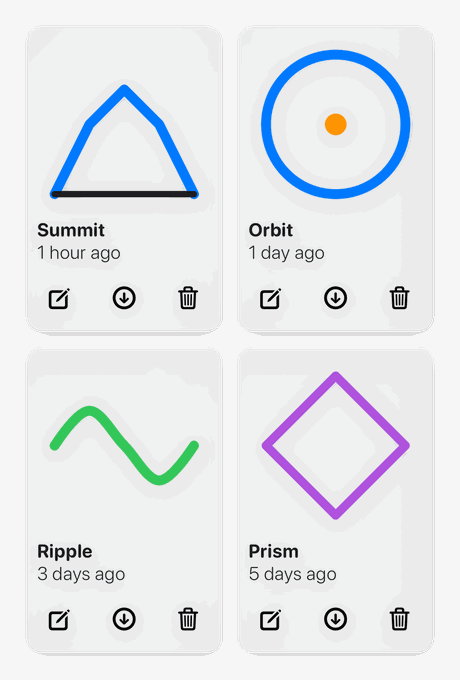
- Saved logos. A gallery keeps every logo to reopen, rename, export or delete. The web editor forgets everything when you reload.
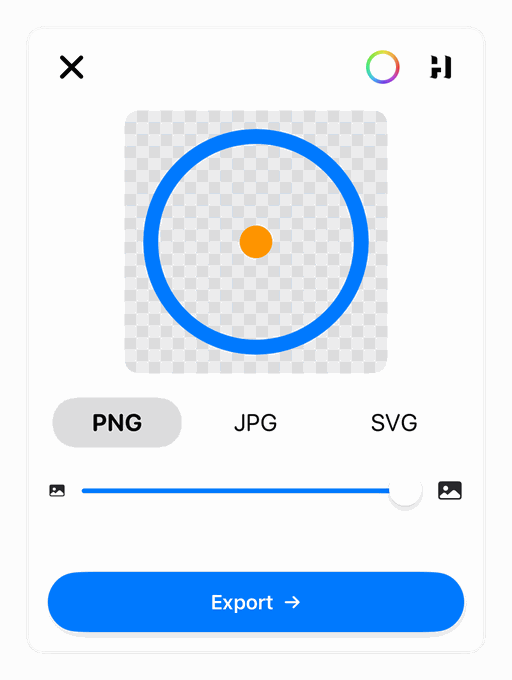
- Transparent and coloured backgrounds. The export sheet starts with a transparent background, and a colour picker sets any other. It exports PNG, JPG or SVG, with an optional drop shadow and a slider that shrinks the mark to as little as 40 percent of the frame for extra margin.
- Shapes the web editor can’t draw. A smoothness slider bends a multi-dot path into a curve, start and end angles turn a circle into an arc, closed shapes can be filled, and a “cut-through” shape punches a hole in whatever is under it. Layers can be reordered.
- Bigger grids and proper corners. Grids go up to 25 dots a side, against 12 on the web, and each drag is one joined path with squared, bevelled or rounded corners.
Free logo maker FAQ
Is there a free logo maker with no watermark?
Yes. EasyLogo’s web editor exports a PNG and an SVG with no watermark and no sign-up. For any other tool, run the four checks at the top of this guide before you start designing.
Can I make a logo online without signing up?
Yes. The web editor has no account at all. The trade-off is that nothing is saved, so download your files before you close the tab.
Can I trademark a logo I made for free?
You can apply. After you file, the USPTO searches its own database as part of examining the application, and likelihood of confusion is the most common reason it refuses registration, so search first.
How we made this
Every logo here was drawn in EasyLogo’s web editor, the same page as /logo-maker, running on our own machine. A script set the controls, dragged between the dots with real mouse events, saved exactly what the editor’s download buttons produce and checked every exported line and circle against the plan. We checked each step in this guide against the editor’s source code. The small-size figure shrinks those PNG exports with a standard resampling filter; the dark-background figure shows our SVG export before and after the two text edits, rendered in Chrome. The iOS app details come from its source code and our app page, and the legal details from the USPTO, US Copyright Office, WIPO and GOV.UK pages linked above. The photo is from the Metropolitan Museum of Art’s open-access collection, via Wikimedia Commons.
References
- US Patent and Trademark Office. What is a trademark?
- US Patent and Trademark Office. Likelihood of confusion.
- US Patent and Trademark Office. Federal trademark searching.
- US Patent and Trademark Office. Design search codes and the Trademark Design Search Code Manual.
- US Patent and Trademark Office. Trademark Search.
- US Patent and Trademark Office. Nice Agreement current edition version: general remarks, class headings and explanatory notes.
- US Patent and Trademark Office. USPTO fee schedule.
- US Copyright Office. What Does Copyright Protect? (FAQ).
- US Copyright Office. Compendium of U.S. Copyright Office Practices, Third Edition, Chapter 900: Visual Art Works, sections 906.1 and 914.1.
- World Intellectual Property Organization. Global Brand Database.
- GOV.UK. Search for a trade mark.
- MDN Web Docs. SVG: Scalable Vector Graphics.
- MDN Web Docs. Image file type and format guide.
Image credits
- Pocket set of drawing instruments, Peter Dollond, London, about 1755 to 1760 · Photo: The Metropolitan Museum of Art, CC0 1.0 (Cropped and resized)